
The best kids tablets for learning are the ones a parent can actually control, and that distinction matters more than the spec sheet. A device can have a brilliant screen and a fast chip and still be a bad learning tool if a four year old can wander out of the learning profile in two taps. So we ranked these twelve on the three things parents tell us decide the outcome: how well the parent dashboard locks things down, how long the battery holds up on a long outing, and whether the tablet survives being dropped.
Everything below comes from the published specifications and from what buyers report after living with the device. We did not measure charge times ourselves or drop these units from a height, and we say so plainly. Where a number comes from a manufacturer claim, like a stated battery runtime, we treat it as a claim rather than a measured result.
A kids learning tablet is a tablet built or configured for children. It combines a durable kid-proof case, a locked-down age-filtered interface, and a library of educational apps, books and videos that a parent manages from a dashboard. The setup always works the same way: you create a child profile, enter an age, and the tablet filters its library to match, then the dashboard lets you set daily limits, approve purchases and block the browser outright.
That setup is what determines whether screen time turns into reading practice or into passive scrolling. In 2026 we narrowed the field to twelve tablets that cover the full range, from a screen-free learning pad for a 12 month old to a 10-inch Android tablet for a 10 year old who wants a stylus for handwriting. If you are shopping for a toddler specifically, our toddler tablet guide goes deeper on the under-fives range.
Top 3 Best Kids Tablets for Learning in 2026

Amazon Fire 7 Kids
- Ages 3-7 with a bundled kid-proof case
- 10-hour stated battery
- Parent Dashboard filters content by age

LeapFrog My First Tablet
- Ages 12 months and up
- Three play modes for Explore Learn and Music
- Lightest body at 12 ounces

COLORROOM 10-inch Android 15
- 10.1-inch 1280x800 eye-care screen
- Google Kids Space for ages 3 and up
- 6000mAh battery rated 8-12 hours
Quick Comparison of the Best Kids Tablets for Learning in 2026
The table below covers all twelve tablets in the same order as the reviews that follow, so you can jump straight to the one that fits. Key Features are drawn from each product’s own specification listing.
| Product | Specifications | Action |
|---|---|---|
| Amazon Fire 7 Kids |
|
Check Latest Price |
| LeapFrog My First Learning Tablet Scout |
|
Check Latest Price |
 VTech PAW Patrol Learning Tablet VTech PAW Patrol Learning Tablet |
|
Check Latest Price |
 LeapFrog LeapPad Academy LeapFrog LeapPad Academy |
|
Check Latest Price |
| COLORROOM 10-inch Android 15 Kids Tablet |
|
Check Latest Price |
 LeapFrog LeapPad Ultimate Ready for School LeapFrog LeapPad Ultimate Ready for School |
|
Check Latest Price |
 Qiaojoy Bilingual Learning Pad Qiaojoy Bilingual Learning Pad |
|
Check Latest Price |
 AOCWEI 10-inch Kids Tablet AOCWEI 10-inch Kids Tablet |
|
Check Latest Price |
 Think Academy Interactive Learning Pad Think Academy Interactive Learning Pad |
|
Check Latest Price |
 TABWEE 10-inch Android 16 Kids Tablet TABWEE 10-inch Android 16 Kids Tablet |
|
Check Latest Price |
 Plimpton 10-inch Android 15 Kids Tablet Plimpton 10-inch Android 15 Kids Tablet |
|
Check Latest Price |
 aiprotablet 10-inch Android 16 Kids Tablet aiprotablet 10-inch Android 16 Kids Tablet |
|
Check Latest Price |
1. Amazon Fire 7 Kids – Best Overall for Ages 3-7
Amazon Fire 7 Kids tablet, ages 3-7. Top-selling 7″ kids tablet on Amazon. Includes ad-free and exclusive content, easy parental controls, 10-hr battery, 16 GB, Blue
Ages 3-7
16 GB expandable to 1TB via microSD
Stated battery up to 10 hours
2-year worry-free guarantee
Pros
- Kid-proof case survives repeated drops
- Parent Dashboard filters by age and sets time limits
- Long battery holds up on outings and road trips
- One year of Amazon Kids+ included
- 7-inch body fits small hands
Cons
- 16 GB leaves very little usable space after the OS takes its share
- Kids+ renews monthly once the first year ends
- Daily limit settings can be unintuitive
- Performance lags higher-end tablets
This is the tablet we keep coming back to. The Fire 7 Kids is marketed at ages 3-7 and the age band matches the hardware, with a 7-inch body small enough for a preschooler to hold in two hands. The bundled case is the piece most parents underrate, because it is the case and not the tablet that absorbs most of the drops.
The Parent Dashboard is the reason this is our top pick. You set the child’s age once and the library filters itself, then daily limits, category limits and purchase approvals all sit in one place. Parents searching for a first tablet for a five year old often say the real use case is video and games with learning apps as a secondary benefit, and this dashboard handles that split without you rewriting rules every week.
Amazon bundles a year of Kids+ with the device, which covers ad-free books, games and video from Disney, Nickelodeon and PBS Kids. It also ships with a two-year worry-free guarantee, so a genuine break gets replaced rather than becoming your problem.
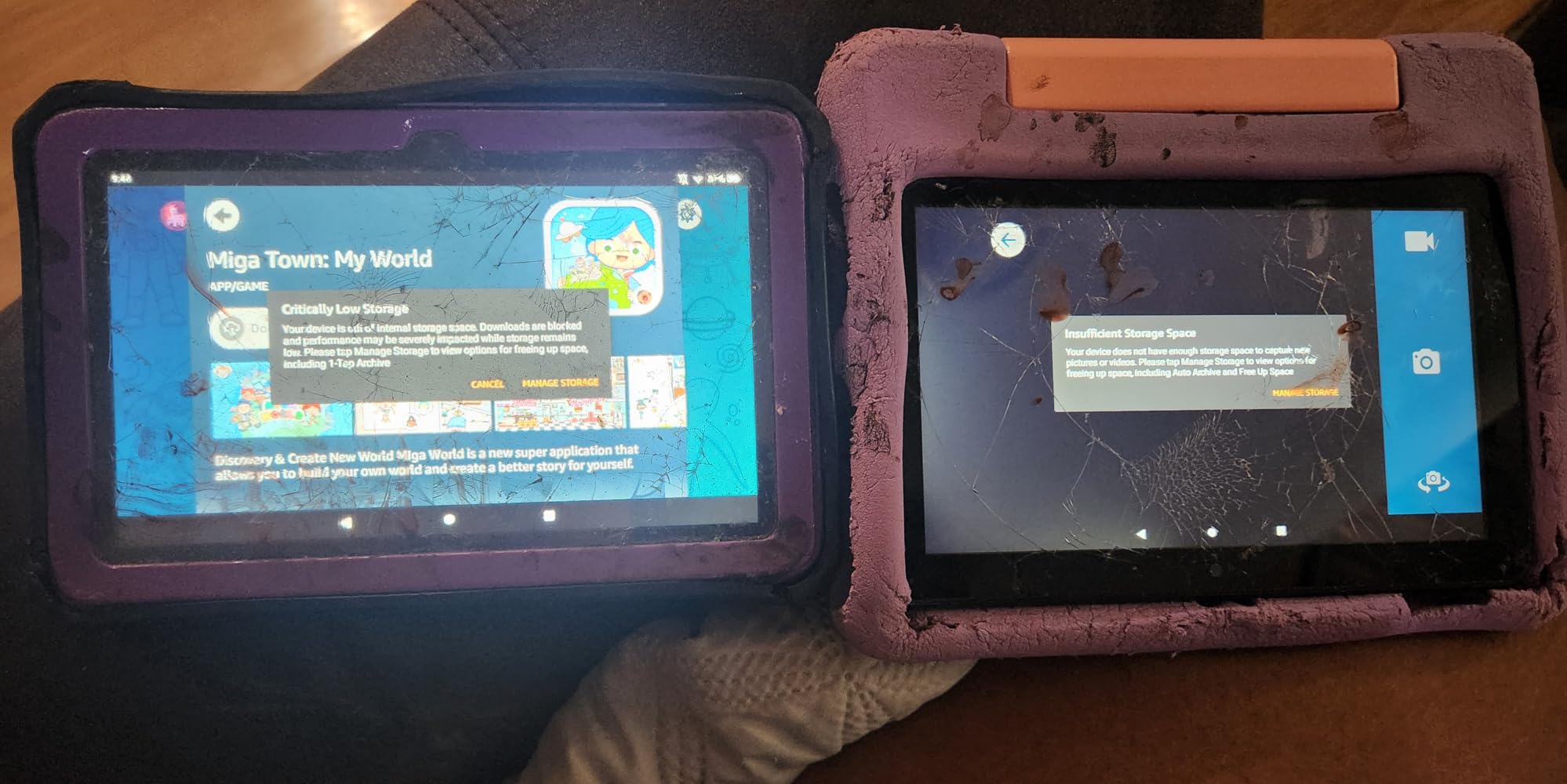
The storage figure is where most families get caught. The 16 GB variant leaves roughly 3.5 GB usable after system software takes its share, and buyers report adding a microSD card or stepping up in storage once apps start accumulating. Expanding to 1TB is supported, so the card is the cheaper route.
Speed is the honest drawback. App loading and profile switching both lag compared with a current adult tablet, and reviewers describe it as unresponsive next to an iPad of similar age. For the age range this is built for, that lag rarely matters, since the workload is video and simple games rather than heavy apps.
Battery life is listed at up to 10 hours, and parents on road trips report that being genuinely useful rather than decorative. A single charge covers a long car journey with room to spare.
What parents check before buying the Fire 7 Kids
Most questions come down to storage and to the subscription. Check how much free space you actually get, and decide early whether you will keep Kids+ after year one, because the daily-limit features work best when the library is properly filtered.
The Kids+ renewal is the part worth planning around. Once the included year ends it renews monthly, and the content filter stays useful even without it, but the curated library thins out. Parents who decide up front treat the renewal as a budget line rather than a surprise.
Where the Fire 7 Kids falls short
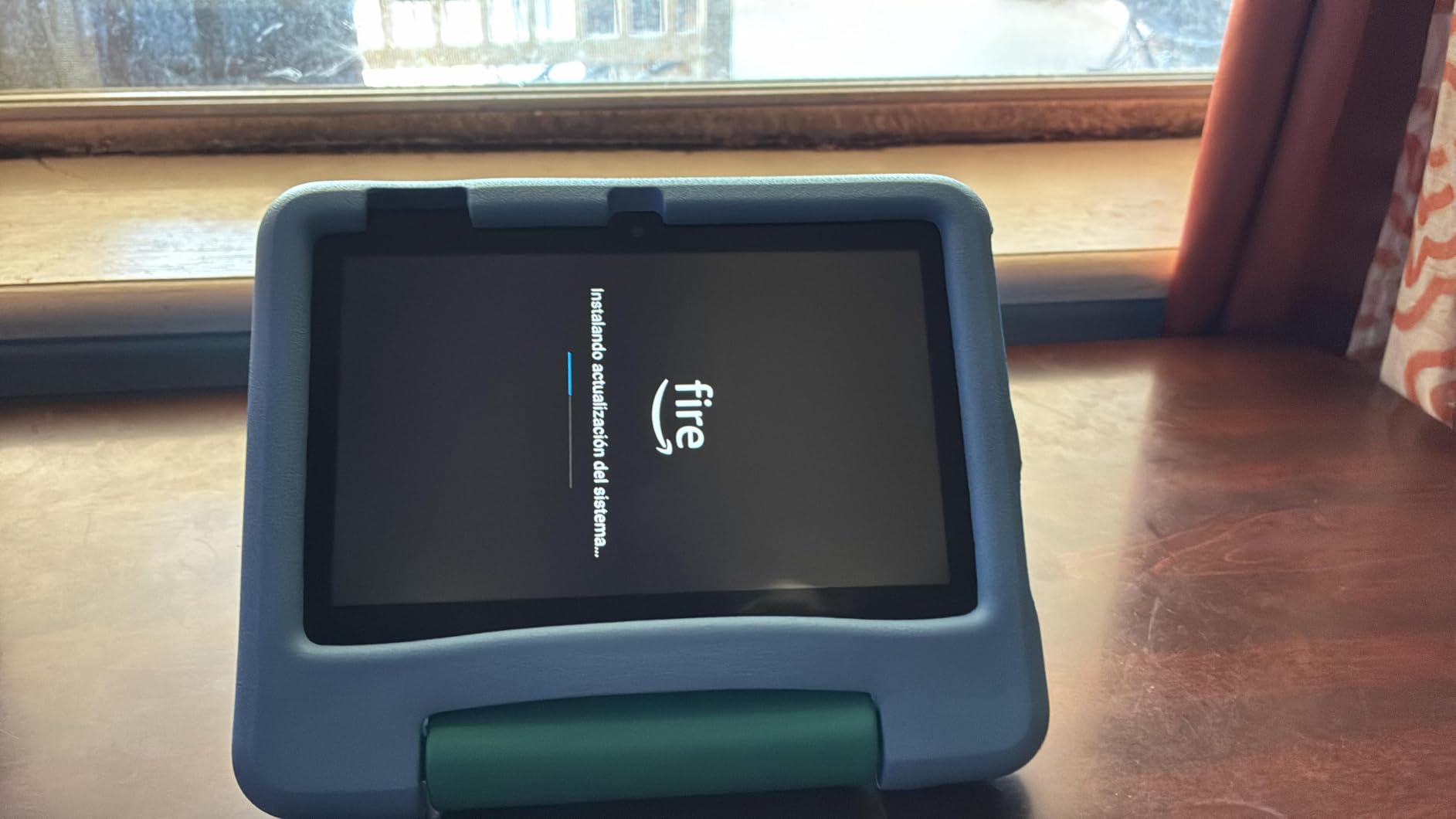
It has no Google Play Services, so YouTube Kids and Google Classroom are awkward to reach. Schools that issue assignments through Google tooling will find this harder than a standard Android tablet.
It is also a device children outgrow. Parents with kids aged 6-12 report children move off the 7-inch model quickly and end up on a Pro model or an iPad once reading and schoolwork take over from video.
2. LeapFrog Scout My First Learning Tablet – Best for Toddlers from 12 Months
LeapFrog My First Learning Tablet, Scout
Ages 12 months and up
12 ounces
1.4 x 6.83 x 7.89 inches
Three play modes: Explore Learn Music
Pros
- Cheapest genuine entry point from 12 months
- Three modes that grow with the child
- Survives repeated toddler drops
- Bright screen and lights respond without lag
- Lightweight with volume control
Cons
- Interactions are closer to press-and-see than real learning
- Runs on 3 AAA batteries rather than a rechargeable cell
- Some units arrive with a scratched screen
At 12 ounces and with a body under 7 inches wide, this is the only tablet here that a one year old can genuinely hold. The rating is the second highest in the roundup and about 80% of reviews are five star, which for a device this simple is a strong signal.
The design philosophy is different from everything else on this list. There is no app store, no browser and no way to wander. The home screen is 20 fixed icons covering letters, numbers, shapes, animals and colours, and every action triggers a light pattern with a matching sound.
That restriction is the whole appeal for a parent buying a first device. There is nothing to unlock and no profile to escape, so the parental control conversation never comes up.
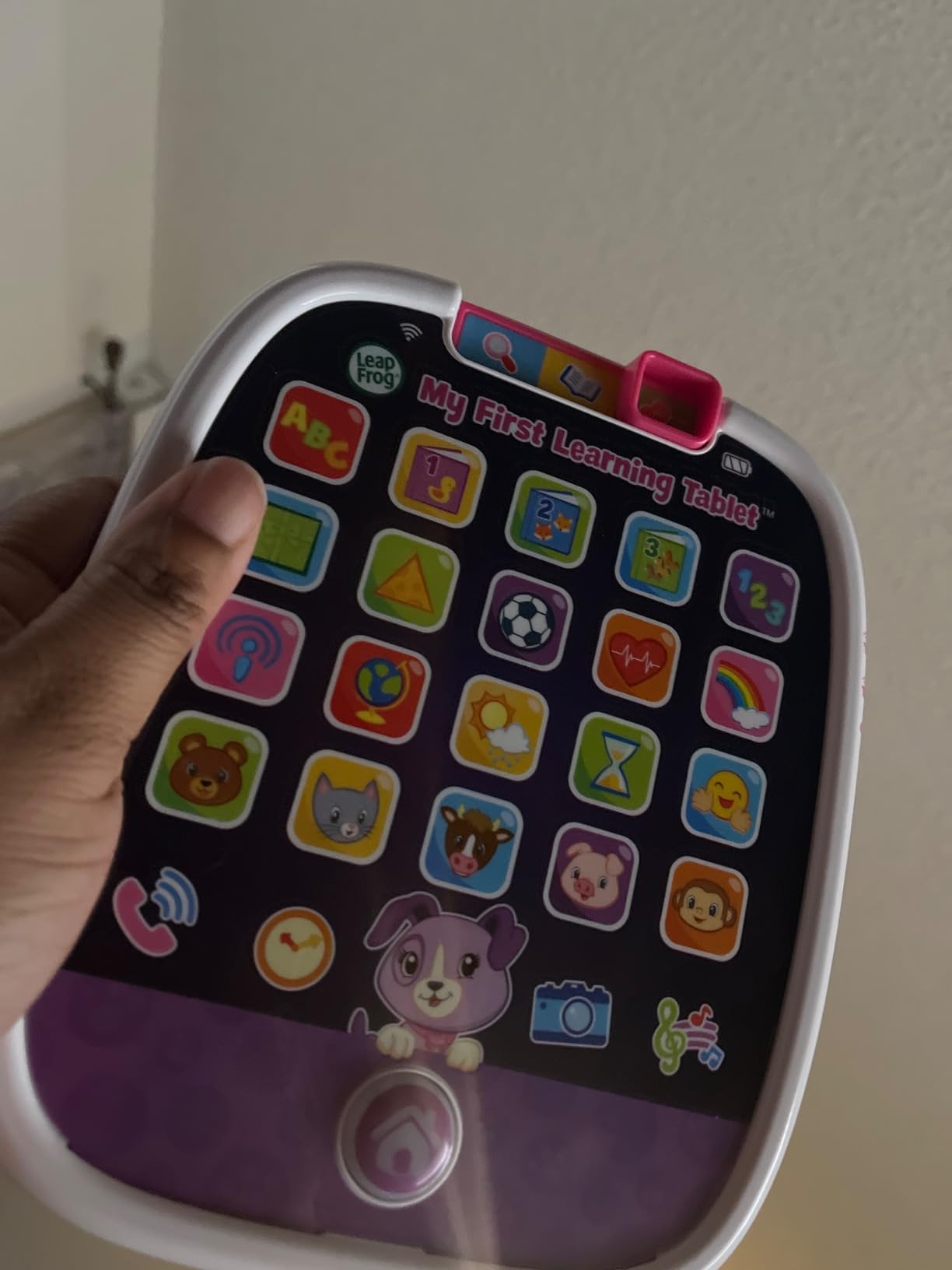
Three modes give it more range than it appears. Explore covers weather, sports and health, Learn handles colours and numbers and shapes, and Music is its own mode. Scout and Violet characters speak and there are greetings in French, Portuguese and Japanese, which is a genuine early-language hook.
The criticism that shows up most often is depth. A small group of one and two star reviewers argue the interactions are too shallow to deliver cognitive development and would rather spend the same money on physical toys or a real tablet. That is a fair description of any press-and-learn device at this age.
It takes 3 AAA batteries rather than a rechargeable cell, and the box includes cells for demonstration only. Families who travel should pack spares, since a dead tablet with no battery on hand ends the session.
What to check before buying for a toddler
Check the age range rather than the child’s number. The stated guidance is 12 months and up, and most buyers describe it as fitting 12 to 36 months well before interest drops off.
If you want bilingual exposure for free, the built-in greetings in three extra languages are worth more here than anywhere else in the roundup, since nothing else at this level includes them.
Where the LeapFrog Scout falls short
There is no path to real learning apps. Nothing you download later changes the ceiling, so this is a first device rather than the last one.
Battery and scratch risk are both real. Plan on spare cells, and inspect the screen on arrival because some units report arriving scratched.
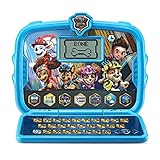
3. VTech PAW Patrol Learning Tablet – Best for Ages 3-6 Phonics Practice
VTech PAW Patrol Learning Tablet
Ages 3-6 recommended
Six learning activities
Built-in rear stand
1.2 pounds
Pros
- Familiar characters strongly motivate practice
- Six activities cover letters phonics spelling typing and math
- Built-in stand for hands-free viewing
- Two volume settings for parent control
- Includes an alarm clock and cuckoo clock
Cons
- Larger and less portable than small handheld toys
- Default volume is high and the reset does not always hold
- Background music recurs in complaints
The single strongest thing about this tablet is motivation. Roughly 81% of reviews are five star, and parents repeatedly credit the PAW Patrol characters for getting a reluctant child to sit with phonics when an unbranded app would have been ignored.
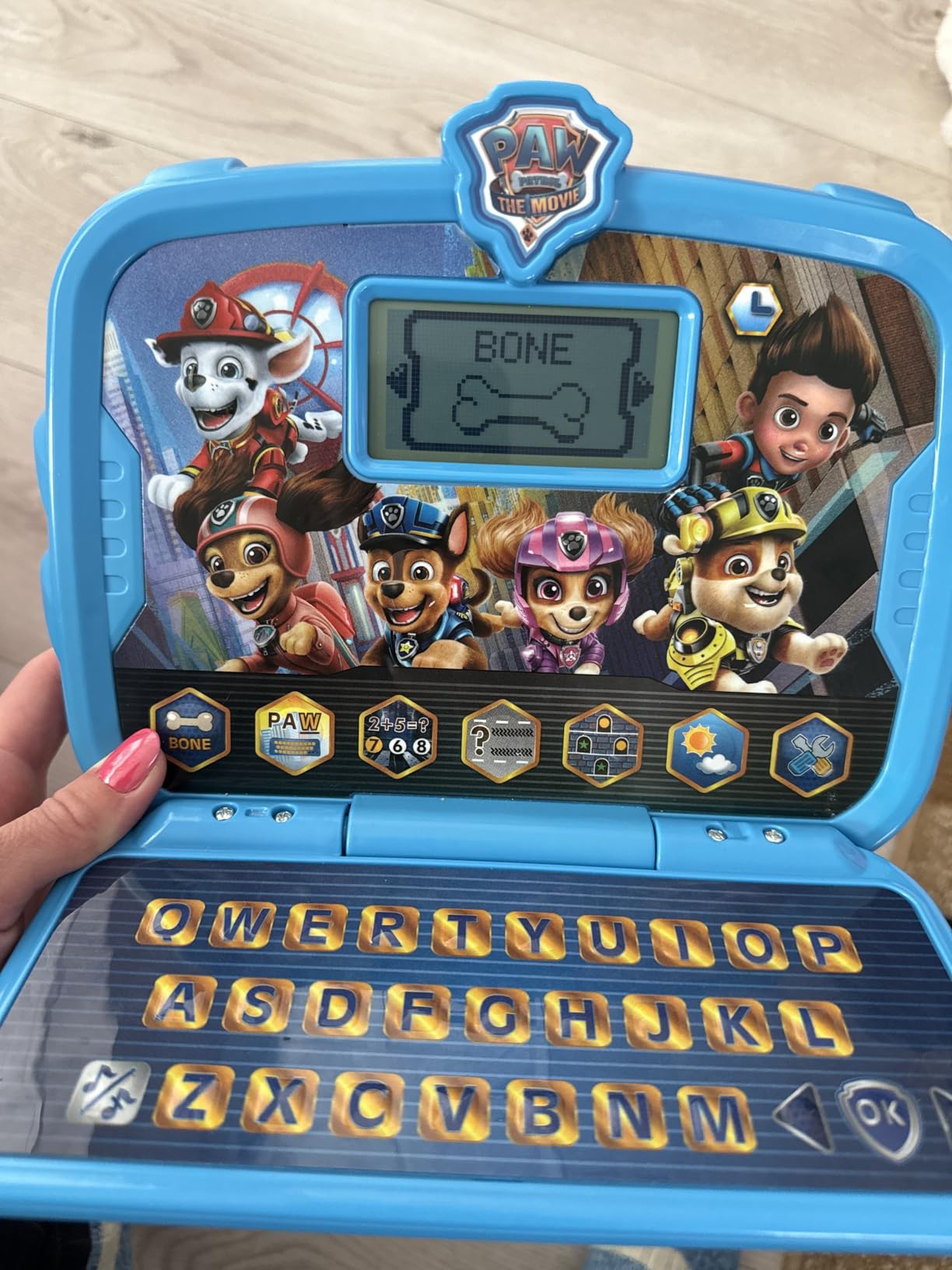
Six activities cover letters, phonics, spelling, typing, math, patterns and weather, animated with the voices of Chase and Skye through six character buttons. That is a wider academic spread than most tablet toys at this level manage, and the typing activity doubles as an early keyboard skill.
The recommended age band is 36 months to 6 years, which sits slightly higher than the Scout and slightly lower than the LeapPad Academy.
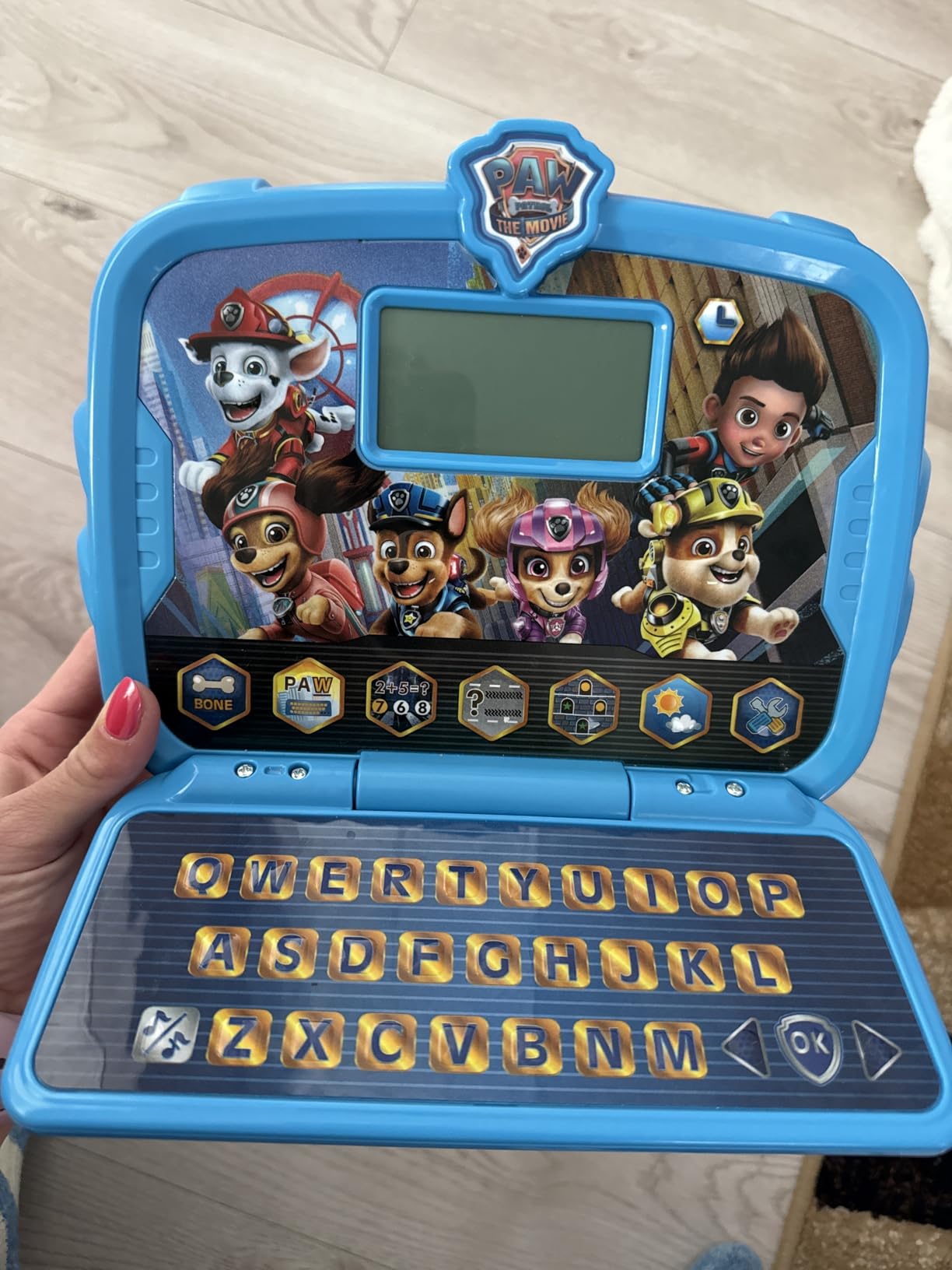
Clock features are an underrated addition here. An alarm clock, a cuckoo clock, six clock faces and selectable alarm tones cover a real preschool milestone, and parents report using the timer to structure a morning routine.
The audio complaints are consistent enough to plan around. The default volume is high, the lowered setting does not always persist between sessions, and background music is hard to disable. Set it once before handing it over and check it again after a restart.
At 1.2 pounds and 9.84 x 9.84 inches it is bigger than a handheld learning toy, so it reads as a small room device rather than a travel one. The rear stand makes that work for floor time and video calls.
What to check before buying for ages 3-6
Check that your child recognises the characters. The whole engagement model depends on familiarity, and a child who does not know the show gets a much smaller benefit from the same hardware.
Check the volume behaviour rather than assuming the low setting sticks. This is the single most common complaint on the audio side and the easiest thing for you to correct in the first ten minutes.
Where the PAW Patrol tablet falls short
It is not portable. The dimensions and weight make it a floor or table device, and it does not fit the role of a travel tablet for flights and car seats.
There is no real app ecosystem. Content is fixed to the theme, so a child who outgrows the characters has nothing left on the device.
4. LeapFrog LeapPad Academy – Best for Stylus and Handwriting Practice
LeapFrog LeapPad Academy Kids’ Learning Tablet, Green
Ages 3-8
7-inch 1024x600 shatter-safe screen
Stylus included in the box
2-year limited warranty
Pros
- Parent controls allow pre-approved websites
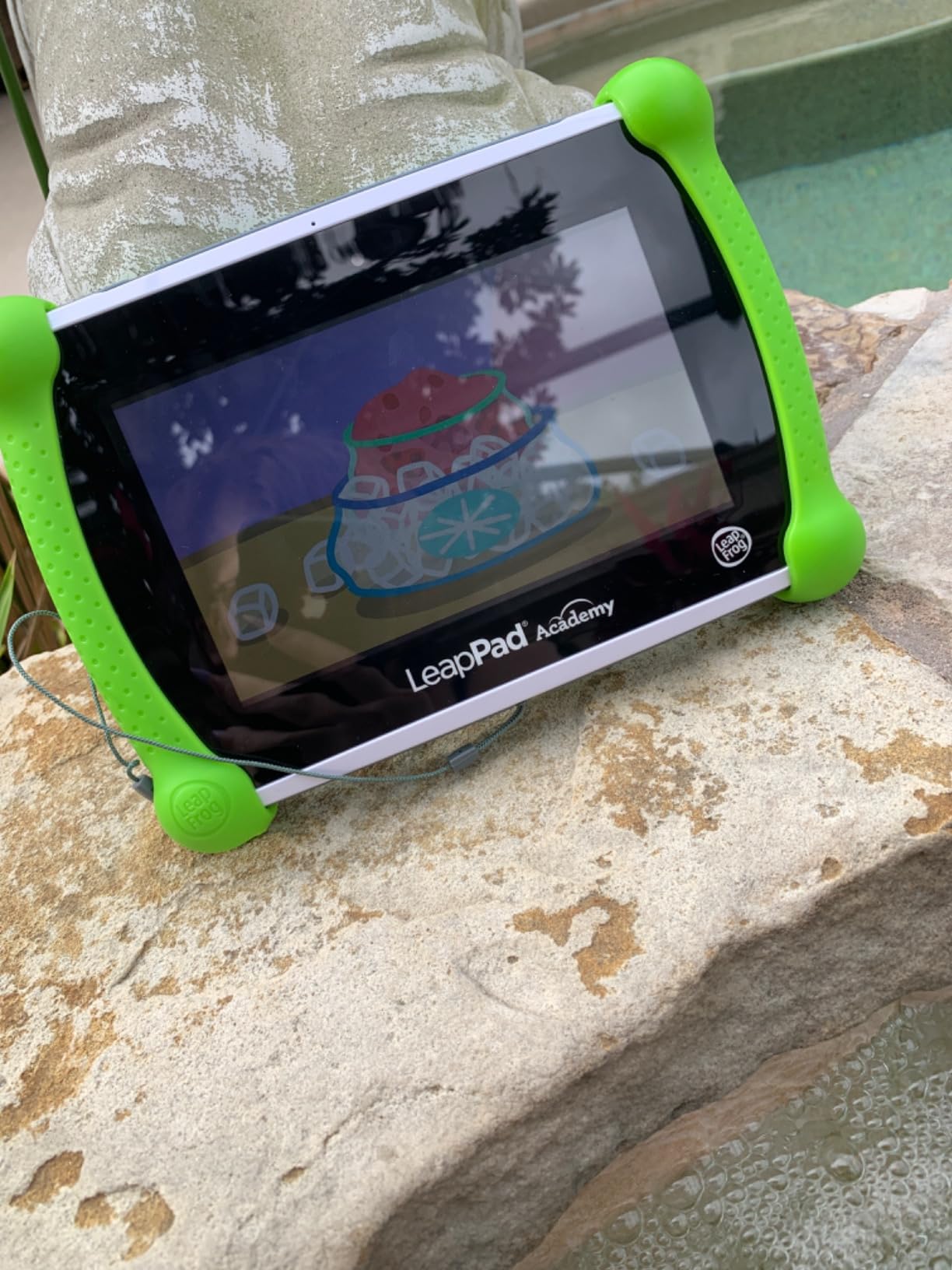
- Chunky bumper and shatter-safe screen handle toddler use
- Stylus works well for handwriting practice
- Screen and graphics clearer than budget rivals
- Built-in kickstand for hands-free viewing
Cons
- Most apps must be bought separately
- LeapFrog Academy adds roughly 40 per year
- Battery life commonly around an hour
- Some units report charging port faults or cracked screens
This is the only tablet in the roundup where a stylus comes in the box and the handwriting case is a genuine buying reason. If your child is working on letter formation or early writing, the stylus support in LeapFrog Academy is the feature that separates it from every other device here.
The parent controls also stand apart. Buyers consistently rate them as stronger than a Fire Kids edition at blocking unwanted content, and you can pre-approve websites rather than only allowing or denying a browser wholesale. For a household that wants structured web access inside a kids tablet, that is the deciding factor.
Twenty or more educator-approved learning apps cover math, reading, writing, coding, problem solving and creativity from the box, and a three-month LeapFrog Academy trial opens up 2000 or more games, activities, eBooks and videos behind it.
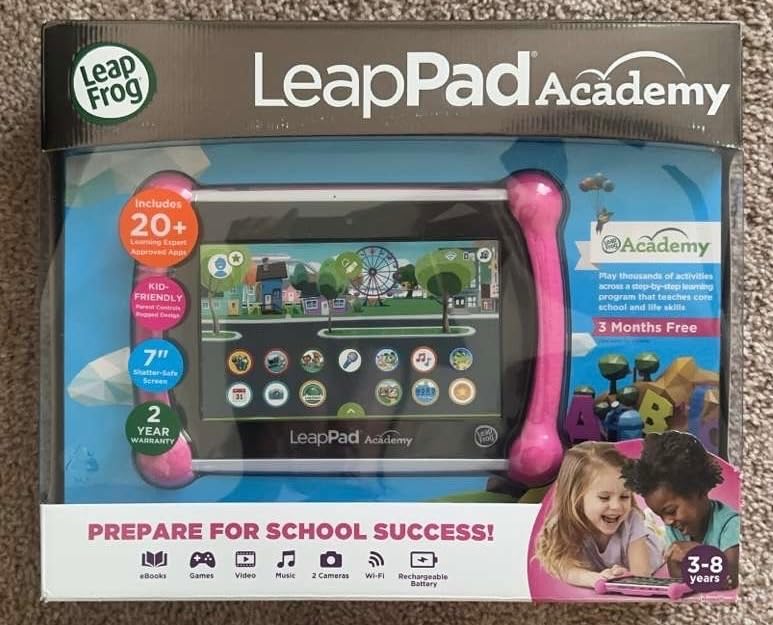
The cost model is the real problem here, and it is economic rather than technical. Very little content ships with the device, most apps must be purchased separately, and the Academy subscription runs around 40 per year. Over a three-year ownership period that changes what this tablet actually costs.
Battery life is the second weak point. Buyers commonly report around an hour per charge, which is far short of the outing-length runtime the Fire models deliver. Plan charging around a session rather than a day.
A small but notable group report hardware reliability problems including charging port failure, freezing and internal screen cracks. Several of those reviewers recommend buying the warranty, which is a two-year limited warranty here.
What to check before buying the LeapPad Academy
Check your child’s age against the 3-8 band and against how much you expect to buy beyond the box. The content library is the strength, and the cost of filling it is the catch.
Check that your child will use the stylus. If handwriting practice is not the goal, a standard Android tablet with a pen support app costs less and runs more smoothly.
Where the LeapPad Academy falls short
Only LeapFrog store apps can be installed. There is no standard app store, so classroom tools like Google Classroom or mainstream reading apps are not available.
The old-style hardware limits it too. Android 10, a Qualcomm quad-core at 1.5 GHz and a 1024 x 600 screen are dated, and that shows in how modern apps behave.
5. COLORROOM 10-inch Android 15 Kids Tablet – Best Big Screen Value
COLORROOM 2026 Upgraded Android 15 Tablet, 10inch Kids Tablet, Octa-core CPU, 10GB+64GB+1TB Expand Tablets for Kids with Kids Space, Parental Control, 6000mAh Big Battery,Touchscreen Tableta,Pink
10.1-inch 1280x800 IPS screen
Android 15 with 64 GB expandable to 1TB
6000mAh battery rated 8-12 hours
Unisoc T606 octa-core
Pros
- Large anti-blue-light screen with automatic brightness
- Google Kids Space with educator-endorsed apps for ages 3+
- 64 GB storage expands to 1TB
- Long 6000mAh battery for reading and video
- EVA protective case in the box
Cons
- Unisoc T606 is an entry-level chip for heavy apps
- Advertised RAM figure overstates real performance class
- No stylus included
A 10.1-inch screen at 1280 x 800 is a step up in size from every tablet above it, and the anti-blue-light panel with automatic brightness adjustment is aimed squarely at long reading sessions. That combination is why this is the pick for a child who is starting to read chapter books rather than tap icons.
Storage is generous for the category. 64 GB is more usable space than the Fire 7 Kids offers, and it expands to 1TB via microSD, which mostly removes the storage anxiety that shapes the Amazon bundle.
Google Kids Space is pre-installed and tailored for children aged 3 and above, with educator-endorsed apps already selected. The parent control layer sits alongside it, so you filter content without hunting through an uncurated Play Store.
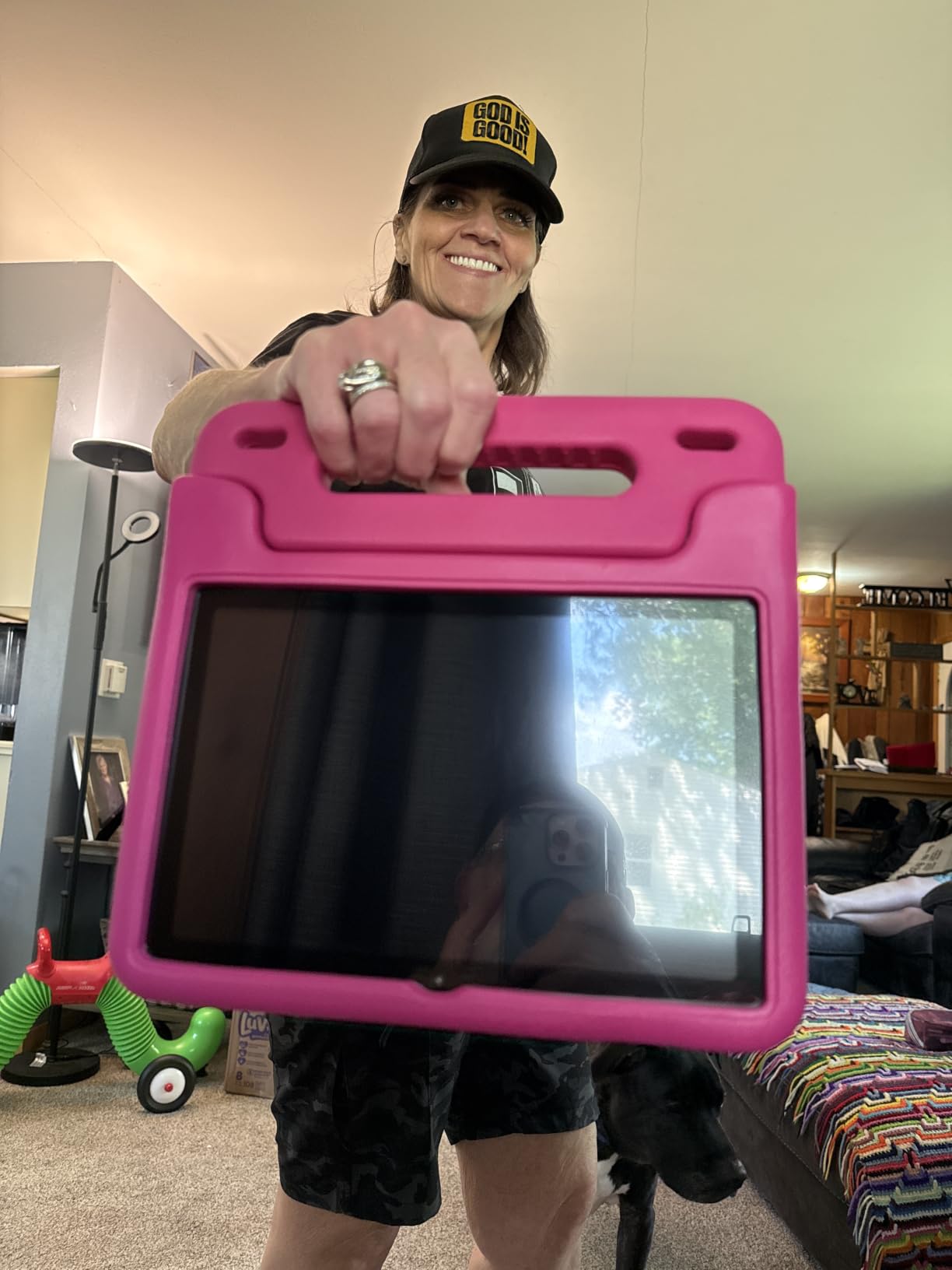
Battery is a genuine strength here. The 6000 mAh cell is rated at roughly 8 to 12 hours of reading or video, which covers a full day of intermittent use and is the second best runtime claim in the roundup after the Fire 7 Kids.
The processor is the compromise. The Unisoc T606 is an entry-level octa-core running at 2 GHz, and despite the marketed 10 GB of RAM the performance class is closer to 3. Heavy games and serious multitasking will feel it.
Dual stereo speakers and a 5MP front camera plus 8MP rear cover the video call and media use cases that make a 10-inch screen worthwhile in the first place.
What to check before buying a big-screen kids tablet
Check whether a 10.1-inch body is realistic for your child. Larger screens are easier on eyes for reading but harder for small hands to hold, and a 7-inch model is often the better fit under age six.
Check that the case is included. This one lists an EVA protective case in the box contents, which removes an accessory cost that several rivals pass along to you separately.
Where the COLORROOM falls short
The chip limits it. Expect smooth performance on reading, video and light apps, and expect stutter on demanding titles or several apps open at once.
There is no stylus in the box, so if writing practice is part of your plan you will need to buy a pen separately.
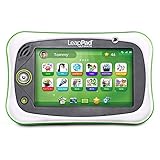
6. LeapFrog LeapPad Ultimate Ready for School – Best for Preschool Readiness
LeapFrog LeapPad Ultimate Ready for School Tablet, Green
Ages 3-6
7-inch 1024x728 shatter-safe screen
8 GB storage with 1 GB RAM
Allwinner A33 quad-core
Pros
- Bundles a large value of school-readiness apps
- Just-for-Me adaptive learning personalises content
- Shatter-safe screen with a built-in bumper
- Kid-friendly browser limited to expert-approved sites
Cons
- Old Brio OS and 1 GB RAM limit modern apps
- Age band of 3-6 is narrower than most rivals
- 8 GB internal storage is small
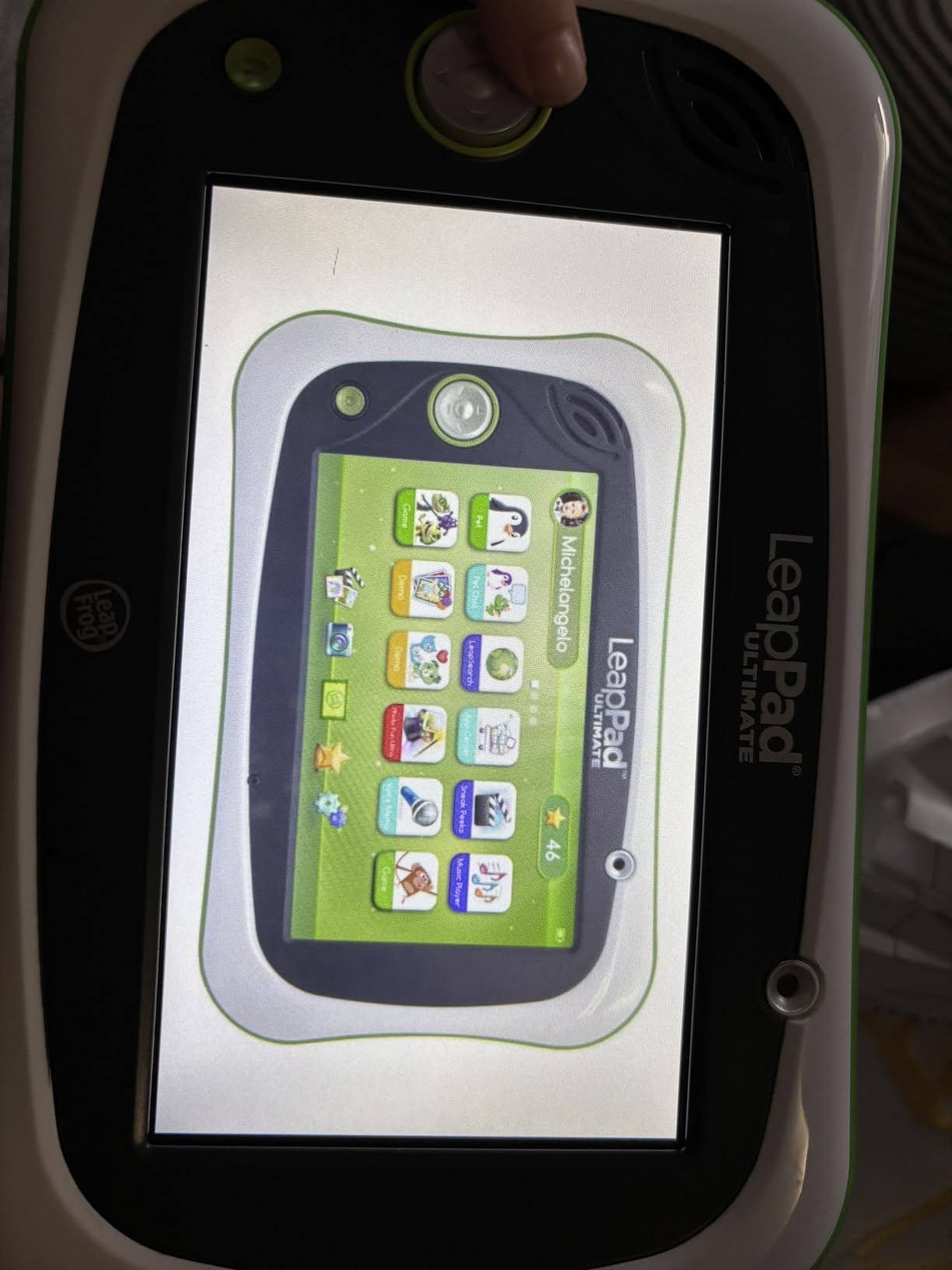
This is the most complete preschool package in the roundup. It bundles roughly 100 dollars worth of school-readiness apps alongside reading, music, problem solving and creativity apps, with a stated total content value above 195 dollars.
Just-for-Me technology is the feature that separates it. The curriculum adapts rather than following a fixed sequence, so a child who needs more time on letter recognition gets it without you adjusting anything.
Like the LeapPad Academy, the browser here is limited to websites chosen by learning experts. That is a more useful middle setting than a locked browser for a child who is ready to explore a little.
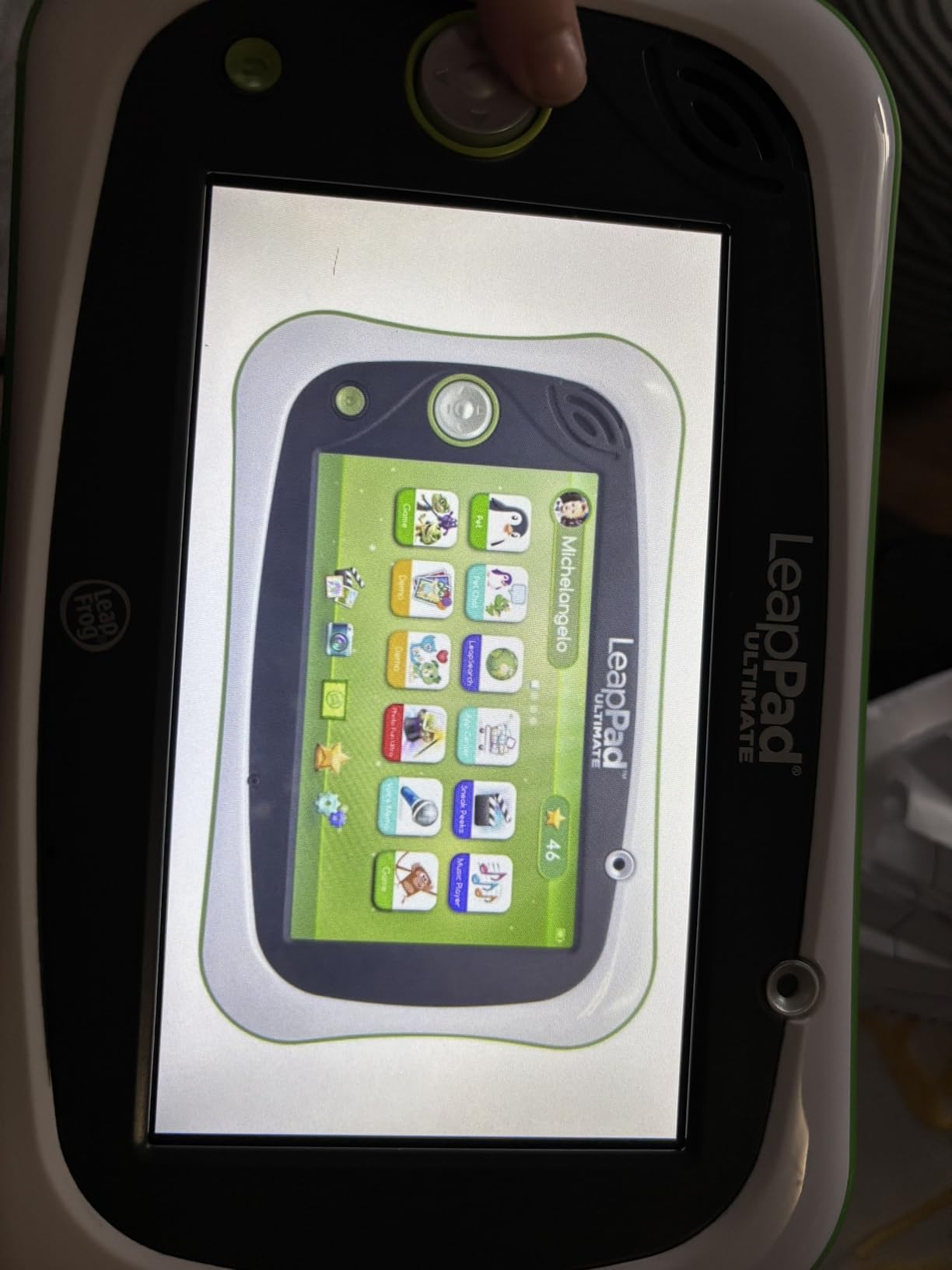
Around 76% of reviews give five stars, and the recurring theme is that parents feel the money went into content rather than into thin hardware. For a child heading into kindergarten that framing works.
The hardware is a previous generation, though. Brio OS, 1 GB of RAM and 8 GB of storage limit what can be installed and how smoothly modern apps run. This is a device for one narrow age band rather than a growing family tablet.
At 1.5 pounds with a 7-inch shatter-safe multi-touch screen and a built-in bumper, it is built for the drop that a four year old will inevitably produce.
What to check before buying a school-readiness tablet
Check the age band first. Ages 3-6 is narrow, and a child on either side of that window is better served by a general Android tablet that grows with them.
Check whether you value bundled content over open app access. This tablet deliberately restricts installs, which is a strength at preschool age and a wall later.
Where the LeapPad Ultimate falls short
It stops working for you around first grade. Once school assignments and mainstream apps arrive, the restricted store and 1 GB of RAM become a limitation rather than a feature.
Storage is minimal at 8 GB, and there is no microSD path to expand it in this configuration.
7. Qiaojoy Bilingual Learning Pad – Best Screen-Free Option for Ages 2-5
Qiaojoy Kids Learning Tablet Educational Learning Pad for Toddlers 2-5
Ages 24 months to 12 years stated
Screen-free design with no display
English and Spanish on one button
20 PVC cards covering 40 themes
Pros
- Screen-free design avoids glare and screen dependence
- Bilingual teaching with a single language switch button
- 20 durable PVC cards across 40 lesson pages
- Talking witch character asks questions to encourage thinking
- Two regulated volume levels for young ears
Cons
- The cards carry most of the learning content rather than the pad
- Stated age range up to 12 misleads older children
- Requires batteries for regular use
This is the one recommendation here that is not a tablet at all. It has no screen, which means no glare, no scrolling and nothing for a toddler to break, and for a two year old that is a genuinely different product category rather than a compromise.
The bilingual angle is the specific reason to choose it. A single button switches teaching between English and Spanish, and the talking witch character asks questions rather than just announcing answers, which pulls a child into thinking instead of listening.
Five learning modes cover word learning, language switching, sound effects and basic plus advanced quizzes. Two volume levels are set to regulation for young ears, which is a small detail that tells you the design was aimed at this age group.
What to check before buying a screen-free pad
Check whether a screen-free format suits your child. Some children engage well with a card and voice system, and others find it passive within a week. The stated range runs to 12 years, but reviewers consistently place its real usefulness at preschool ages.
Check the card system rather than the pad. The 20 PVC cards cover 40 lesson pages and 40 themes including alphabets, numbers, foods, emotions, colours, shapes, instruments, occupations, seasons, weather, months, time, animals and vehicles. That breadth is what you are paying for.
Where the Qiaojoy falls short
It is not a substitute for a real tablet. There is no video, no reading app library and no way to take it forward into school-age work.
Content lives on the cards. If they are lost or damaged the experience loses much of its value, so keep the set together.
8. AOCWEI 10-inch Kids Tablet – Best Full Google Play Access
10 inch Tablet for Kids 12GB RAM 128GB ROM Kids Tablet with Shockproof Case
10.1-inch 1280x800 LED screen
Android 13 with 128 GB expandable to 1TB
6000mAh battery near 8 hours mixed use
MediaTek octa-core 2.0 GHz
Pros
- Child-lock launcher keeps kids in the app dashboard
- Odourless EVA case with a 360-degree adjustable stand
- 128 GB storage plus 1TB TF expansion
- 6000mAh battery for roughly 8 hours mixed use
- GMS certified so full Google Play apps download
Cons
- Android 13 is behind newer kids tablet rivals
- Part of the advertised RAM figure is virtual memory
- No stylus in the box
The distinguishing feature is Google certification. This is a full Android tablet with Google Play access, so YouTube Kids, Google Classroom and mainstream reading apps all install normally, which is the single biggest practical gap on the Fire models.
That matters most once a child starts school. If assignments arrive through Google tooling, a Fire tablet becomes an awkward workaround and this one does not.
Storage is the other headline figure. 128 GB expandable by a further 1TB via TF card is the largest internal capacity in the roundup, and it removes the storage negotiation that shapes cheaper bundles.
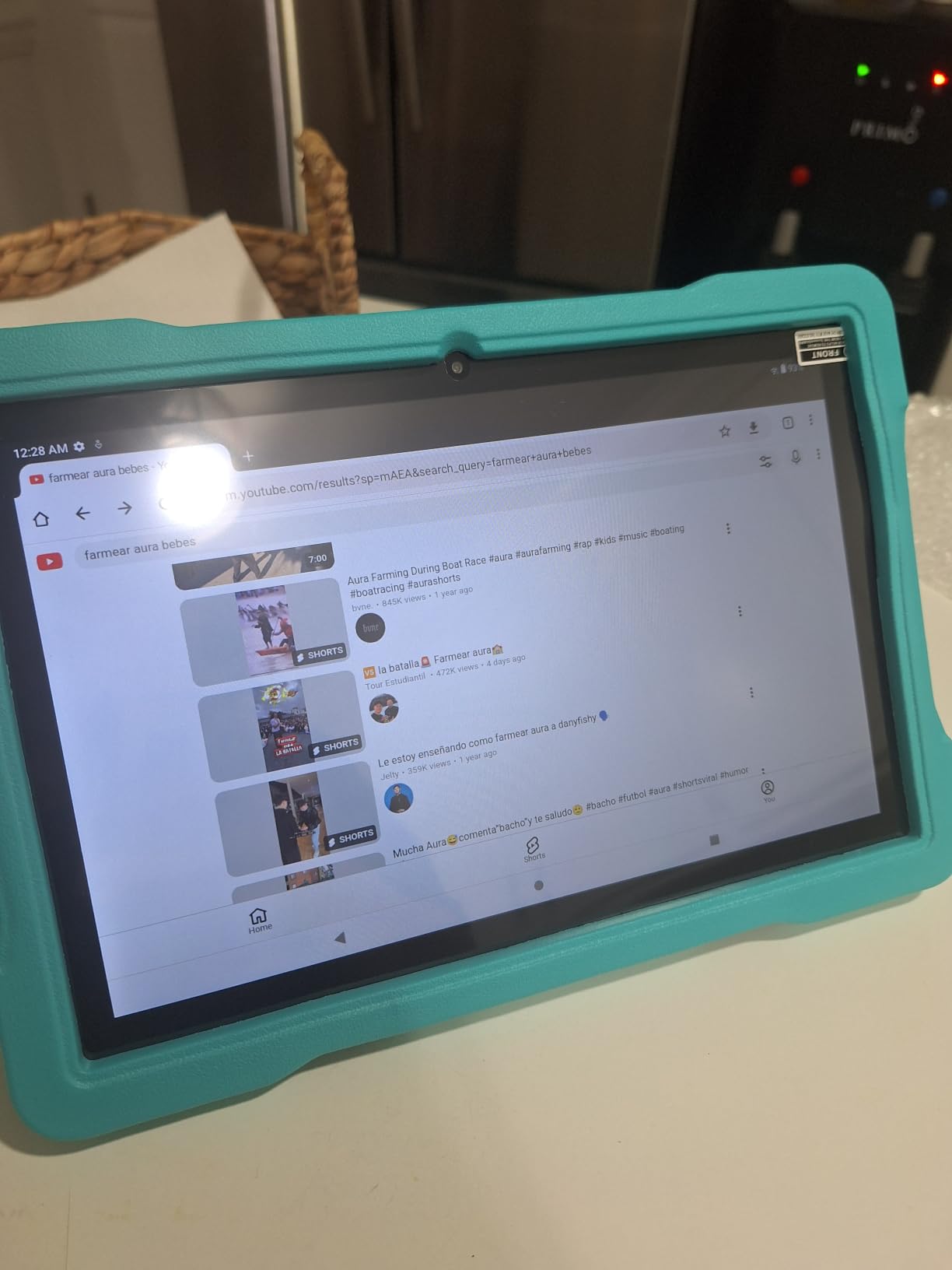
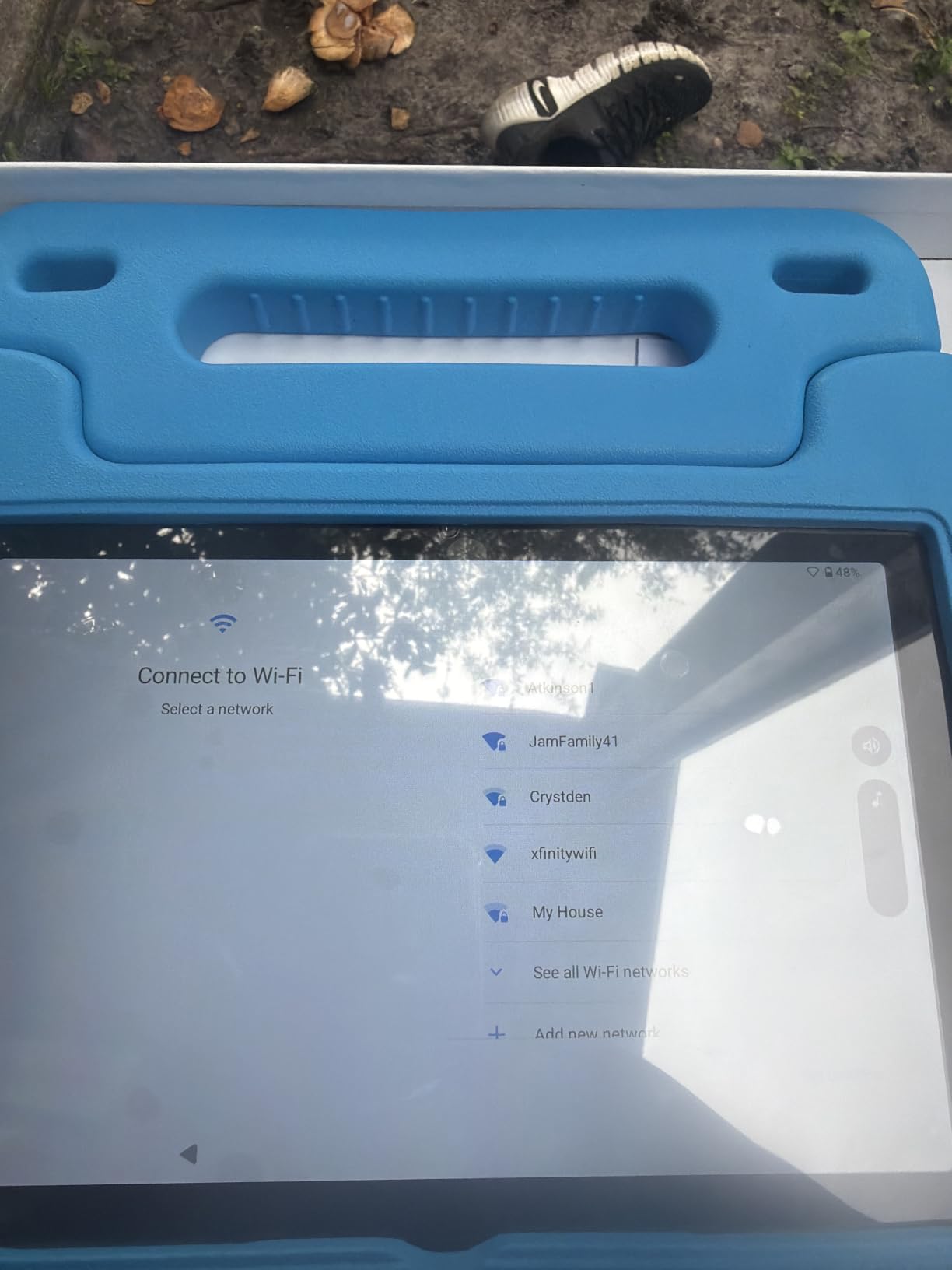
The child-lock launcher is the parental control story here. Pre-installed kids apps including IWAWA and Kids Space sit behind content filtering and screen time limits, and the launcher keeps a child inside the dashboard rather than loose in the home screen.
Battery is rated at nearly 8 hours of mixed use from a 6000 mAh cell, with dual-band Wi-Fi on 5GHz and 2.4GHz, Bluetooth 5.0 and GPS. The specification sheet lists roughly 8 hours while the product description references up to 7 days of standby, so treat runtime as a half-day device.
Around 77% of reviews are five star. The reservations that show up are about the Android version being a generation behind and about virtual memory inflating the headline RAM number.
What to check before buying a Google-certified kids tablet
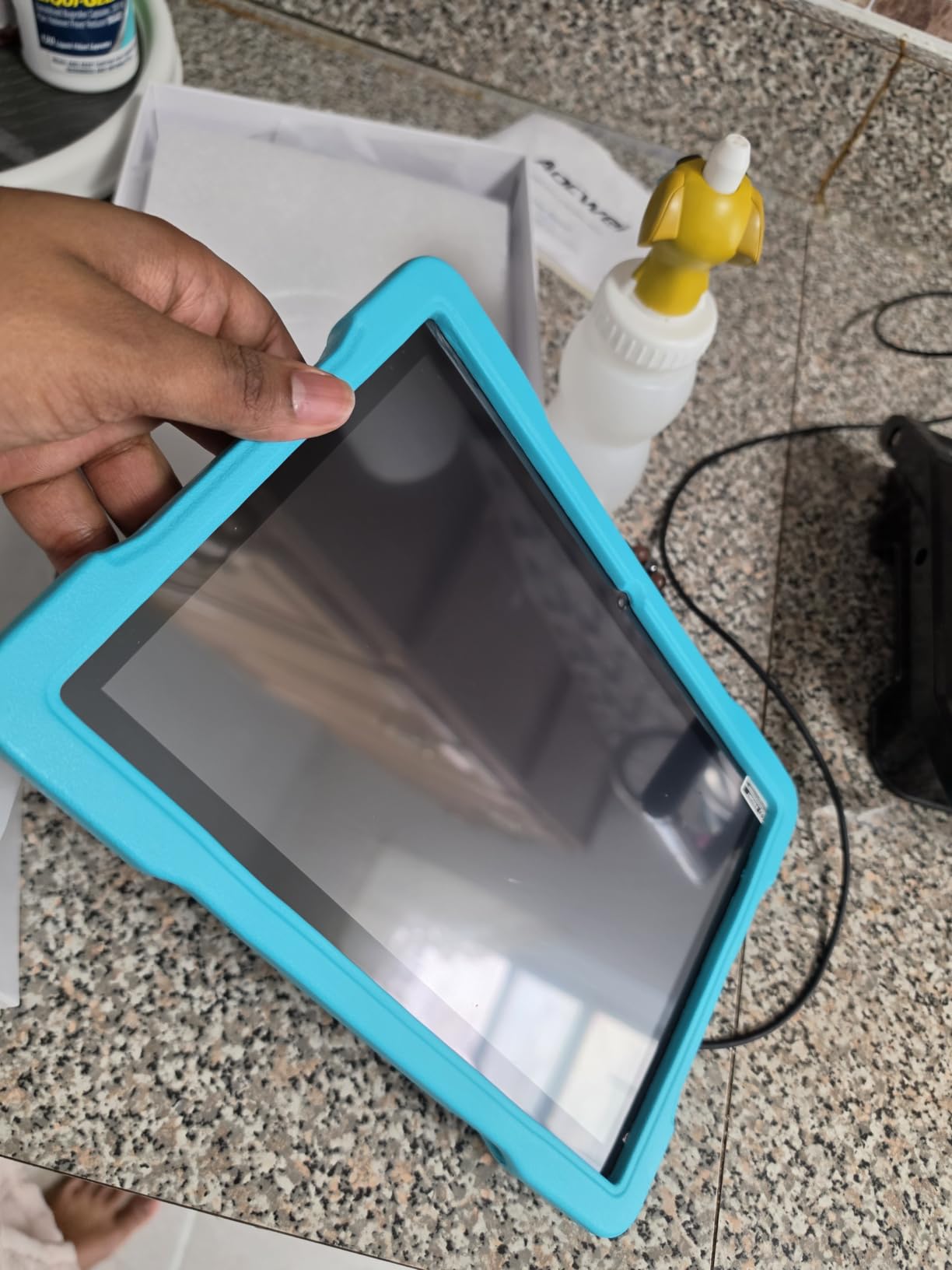
Check the case, because this one lists an odourless EVA kid-proof case with a 360-degree adjustable stand plus a three-layer screen protector in the box. That is a meaningful saving on accessories and it is the part that takes a drop.
Check the warranty length, listed at two years, against the shorter cover some rivals carry.
Where the AOCWEI falls short
Android 13 is dated. Software updates and app compatibility will trail the Android 15 and 16 models here for the rest of the device life.
The RAM figure includes virtual memory, so half of the advertised 12 GB is not physical. Day-to-day use will feel fine, but heavy multitasking will not.
9. Think Academy Interactive Learning Pad – Best Screen-Free Preschool Set
Think Academy Interactive Learning Tablet Pad with Flash Cards for Kids 3-5
Ages 3-5 recommended
Screen-free 11-inch pad
140 themes across four card sets
3 AA batteries required
Pros
- Screen-free alternative that avoids screen glare
- Three play modes adapt to the child's pace
- Wipe-clean waterproof matte film cards
- Thick ABS frame with rounded edges
- 140 themes across numbers letters animals and life skills
Cons
- Requires 3 AA batteries for regular use
- Card-driven content is not a substitute for a real tablet
- Heavier at 2.8 pounds than other pads
The Think Academy is a learning pad rather than a tablet, and it targets exactly the window where a screen is still optional. Around 74% of reviews give five stars, with parents crediting the hands-on approach and the wipe-clean cards.
Three play modes set it apart from simpler card toys. Exploration Mode introduces content, Game Mode turns it into practice, and Hints Mode offers help when a child gets stuck, so a toddler can work without an adult on every turn.
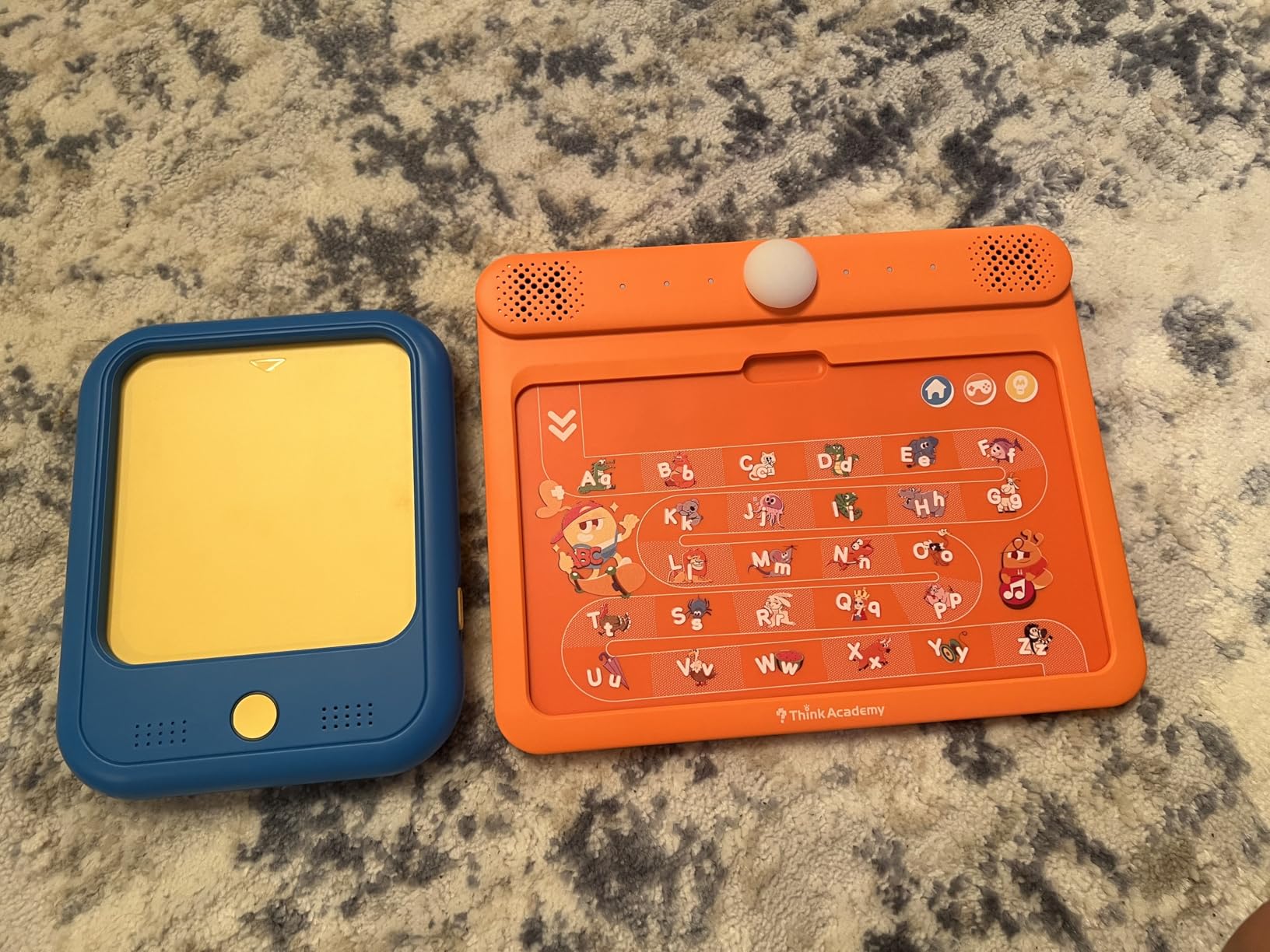
The card sets cover Early Math, Learn to Read, Sing Along and ABCs, and Speak and Spell, which spans 140 themes across numbers, alphabet, animals and daily life skills.
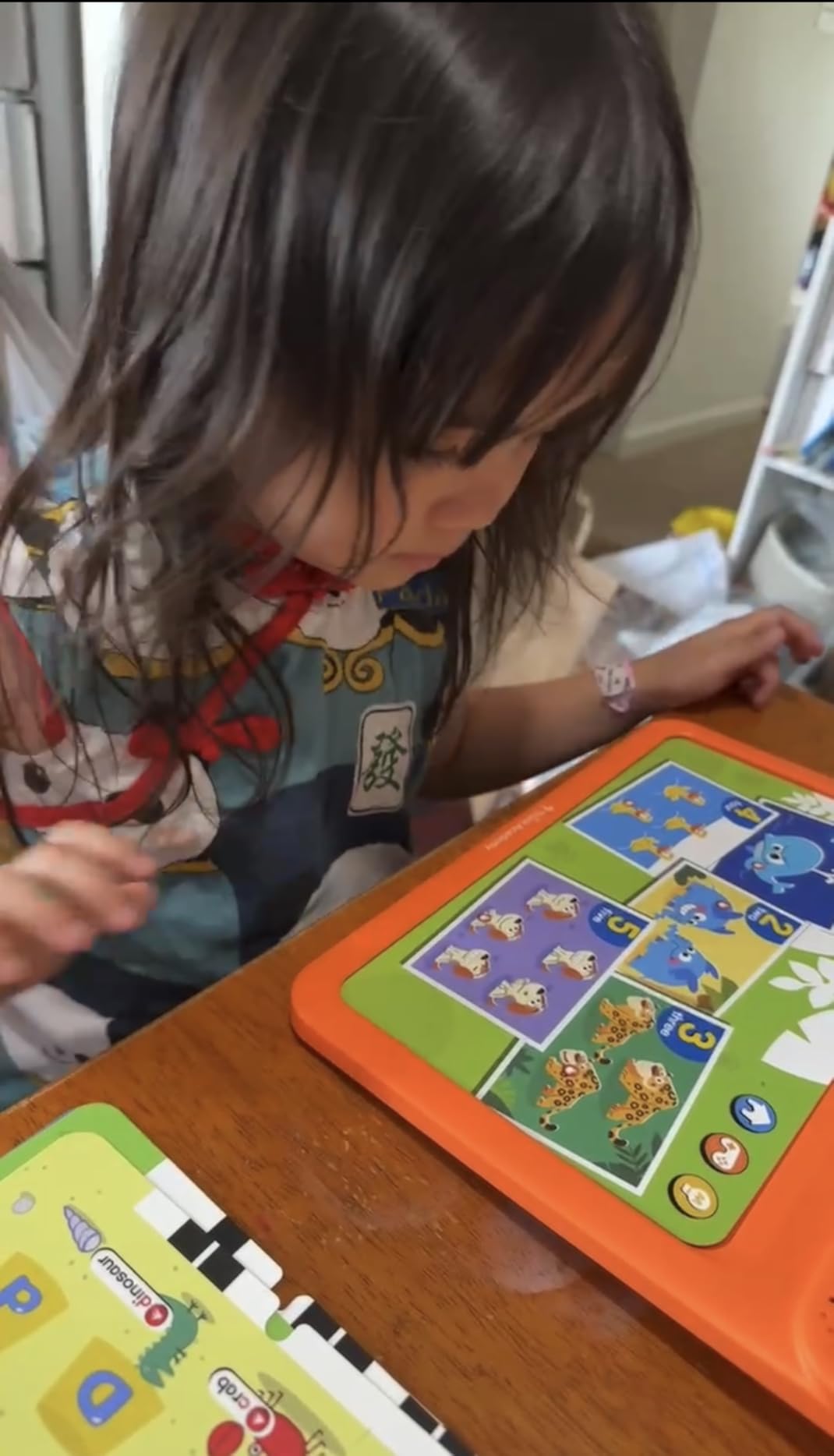
Build quality matters more here than on a screen device. The thick ABS frame with rounded edges handles everyday play, and the flashcards use a waterproof matte film printed with eco-safe inks, so they wipe clean and survive being handled by small hands.
Runs on 3 AA batteries, which is the main practical inconvenience. Pack spares if you travel, in the same way you would for the LeapFrog Scout.
At 2.8 pounds it is the heaviest item in the roundup despite having no screen, because the 11-inch card surface is large. That makes it a floor activity rather than a stroller accessory.
What to check before buying the Think Academy
Check the age guidance against your child. The manufacturer recommendation runs from 36 months to 8 years, but reviewers consistently place the useful window at ages 3-5.
Check the mode structure rather than the theme count. The three modes are what let a child use it independently, and that independence is the reason to pay more than for a single card book.
Where the Think Academy falls short
It stops at preschool. Once a child needs video, a reading app library or school assignments, there is nothing here to grow into.
The battery requirement is ongoing rather than occasional, so this is a device you will be restocking.
10. TABWEE 10-inch Android 16 Kids Tablet – Best for Ages 8-12 With Stylus
Kids Tablet 10 inch, Android 16 Tablets for Kids Ages 8-12,16GB RAM 64GB ROM,Parental Control, Pre-Installed Kiddos Software & Kids Space, Includes Case & Stylus Pen, 2TB Expand, HD Eye‑Care Screen
Ages 8-12
10.1-inch 1280x800 LCD
64 GB expandable to 2TB
Stylus pen and TPU case included
Pros
- Parental controls block unsafe sites and restrict time
- Ergonomic round-tip stylus for drawing and writing
- Anti-glare low-blue-light screen with brightness control
- Durable TPU case with a hidden adjustable stand
- Light 523 g body suits older children
- Free pre-installed children apps with no ads
Cons
- Advertised RAM figure conflicts with the listed technical field
- Entry-level Rockchip RK3562 limits heavier apps and games
- Four-year warranty is the only structural reassurance
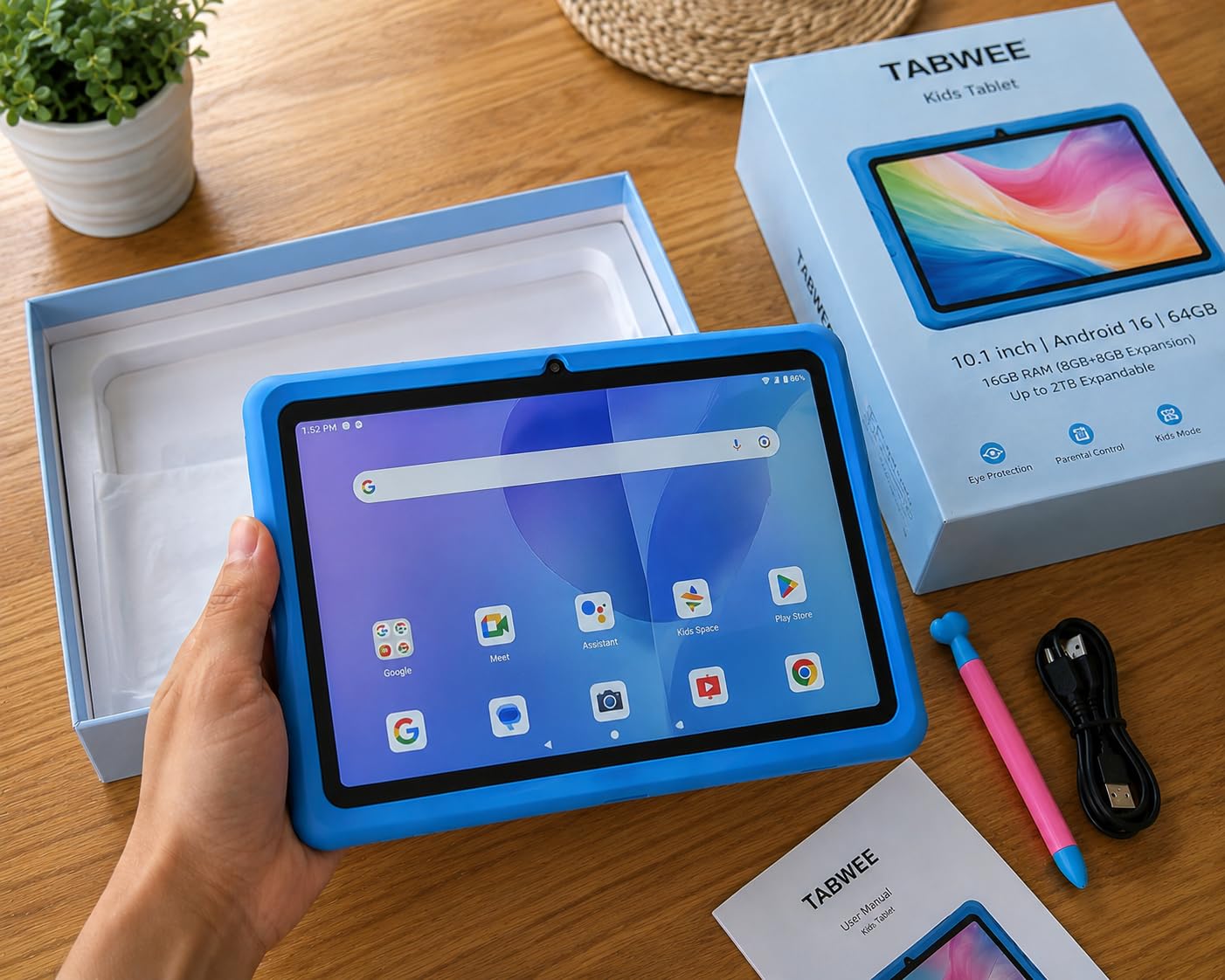
This is the pick for the older end of the range, and the age band is the reason. Ages 8-12 is where a child starts doing real written work, and this is the only 10-inch tablet here that includes an ergonomic stylus in the box alongside the case.
The stylus matters because round tips are easier for a developing hand control than a fine point. For handwriting practice, note taking and drawing, that difference is the whole feature.
A four-year warranty is the longest cover in this roundup, which suits a device intended to be handed to an eight year old and used for years.
Parental control here blocks unsafe websites and restricts usage time, and a multi-user mode with a custom launcher and a private workspace separates a parent profile from a child profile. That last point solves a real problem on shared family devices.
The screen is 10.1 inches at 1280 x 800 with anti-glare and low blue light, adjustable brightness and high touch sensitivity. USB-C charging, Wi-Fi, Bluetooth and front and rear 5MP cameras cover the everyday needs.
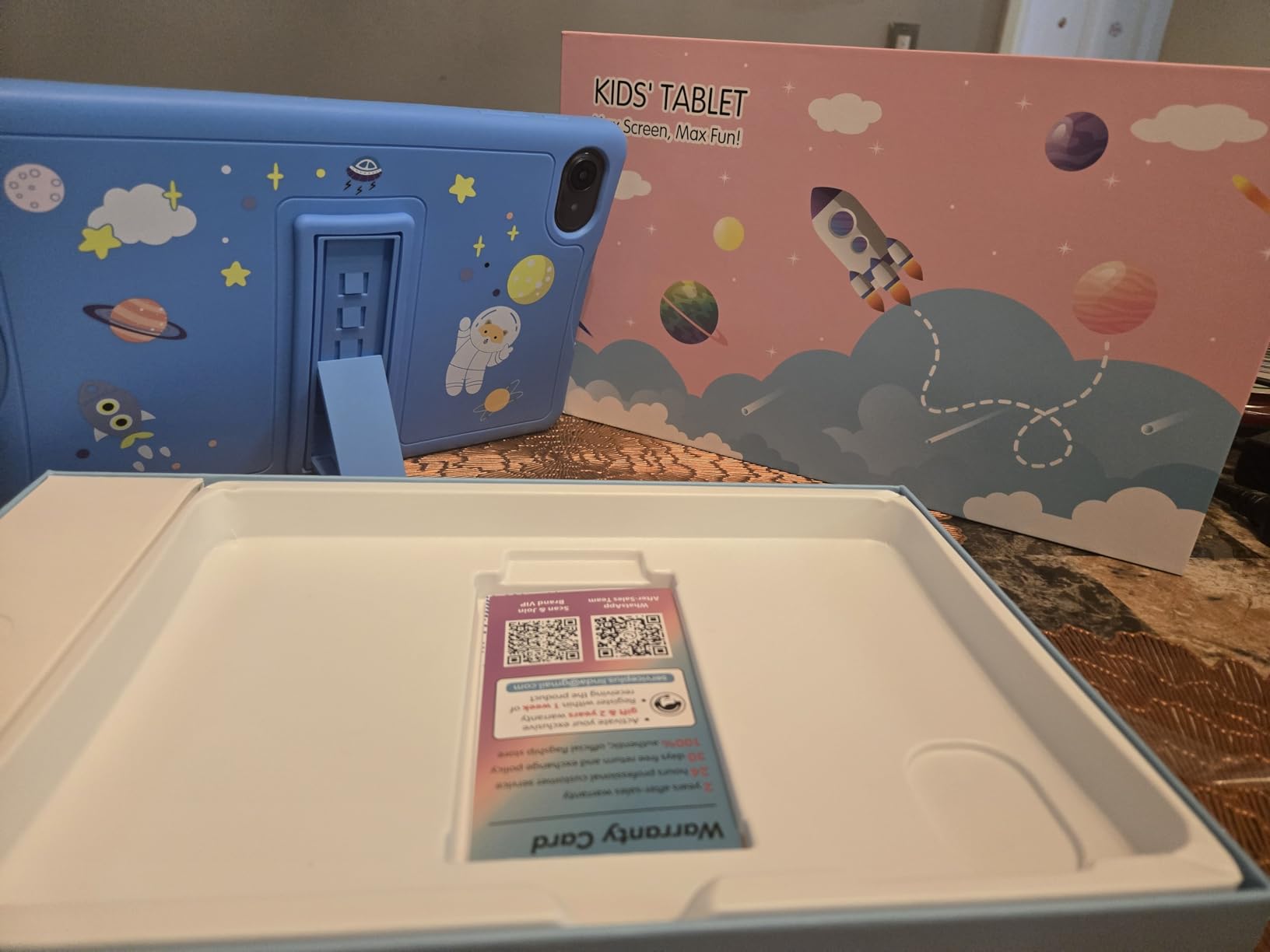
Reviewers rate it around 67% five star, with the case and stylus bundle, the eye-care screen and the 523 gram weight as the main draws. The critiques concentrate on the specification discrepancy over RAM and the modest RK3562 processor.
What to check before buying for ages 8-12
Check that your child is ready for open-ended apps. At this age the parental control model matters less than the stylus and the screen, and a device that locks down too tightly stops being interesting.
Check the storage path. 64 GB expanding to 2TB is the largest expansion ceiling here, which suits a child accumulating photos, drawings and downloaded projects.
Where the TABWEE falls short
The processor is entry-level. The Rockchip RK3562 will not carry demanding games or heavy multitasking, so this is a schoolwork and creative tool rather than a gaming tablet.
Specification listings disagree on the RAM figure, so treat the advertised number as uncertain and judge the tablet on the apps your child will actually open.
11. Plimpton 10-inch Android 15 Kids Tablet – Best for AI Homework Help
Plimpton Kids Tablet 10 Inch – 2026 Upgraded Android 15 Tablet for Kids with Case Included, Octa-Core, Google Kids Space, Parental Control, 4GB+64GB, WiFi, BT5.3, YouTube, Great Gift for Toddler(Blue)
10.1-inch 1280x800 IPS glass
Android 15 with 4 GB RAM and 64 GB expandable to 1TB
Allwinner 8-core at 2.0 GHz
2-year warranty
Pros
- Gemini AI assistant helps with homework and explains concepts
- Google Kids Space with educator-endorsed apps for ages 3+
- IPS glass screen with low blue light and eye protection
- Rugged odourless EVA anti-drop case with a rotatable bracket
- Two-year warranty with a 30-day return policy
Cons
- Only 4 GB of RAM
- which slows multitasking
- Box contents list only the tablet and cables despite the case being advertised
- Heaviest body here at 800 g
This is the only tablet in the roundup with a built-in Gemini AI assistant for homework help, and for a parent whose child is past the phonics stage that is a differentiator no rival here matches. It walks through explanations interactively rather than handing over an answer.
Google Kids Space and parental controls come pre-installed with educator-endorsed apps for children aged 3 and above. So the AI feature sits on top of a filtered library rather than replacing it.
That combination makes it a reasonable middle step: a filtered tablet for a younger child that still has an assistant waiting when they reach school-age questions.
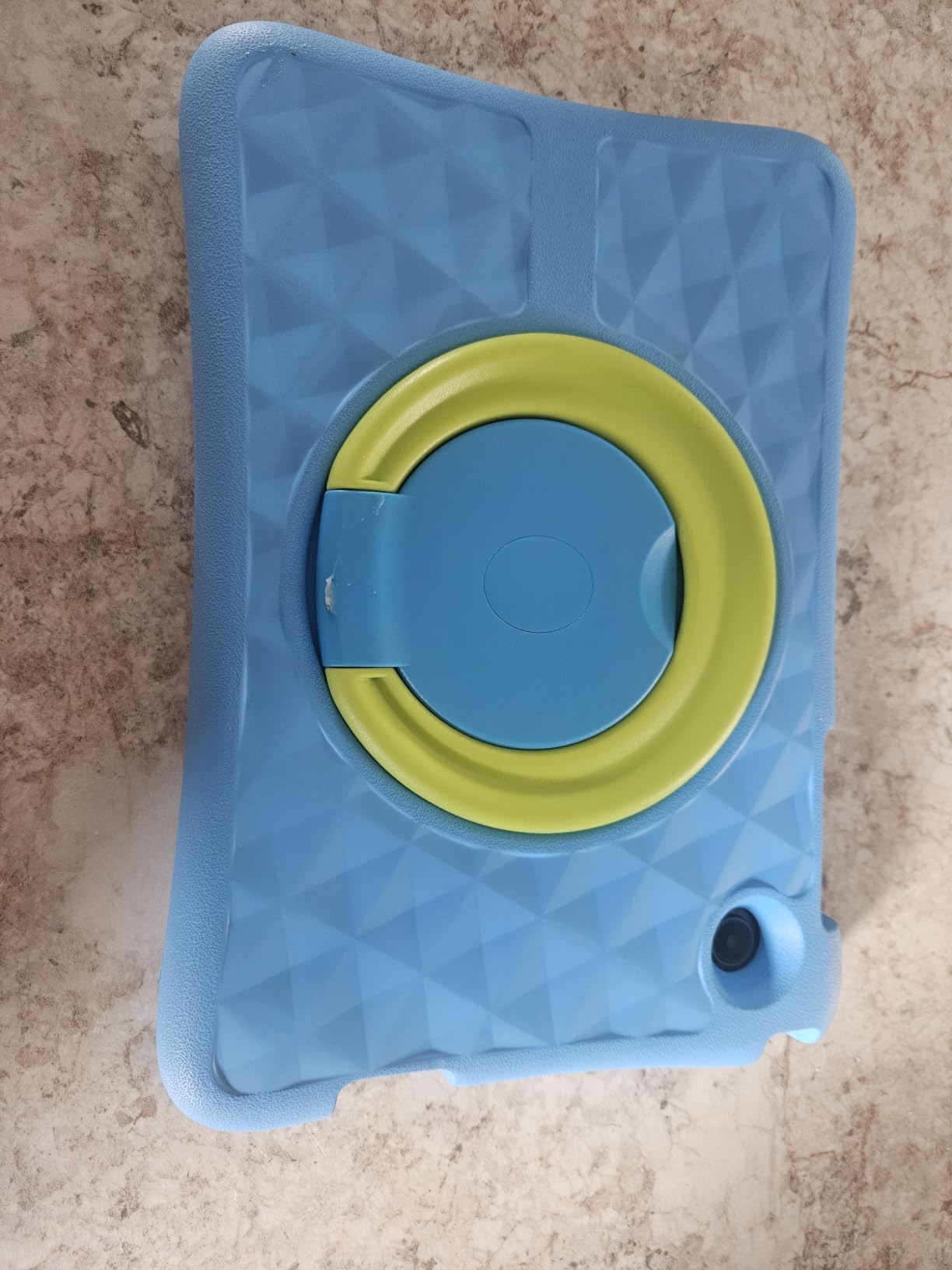
The display is the stronger half of this package. A 10.1-inch IPS glass panel at 1280 x 800 with low blue light, an eye protection mode and automatic brightness adjustment is aimed at long sessions, and glass feels different from the plastic on cheaper models.
The battery is claimed at roughly 8 hours, with the manufacturer stating about 30% longer runtime than the original model.
Around 67% of reviews give five stars, and reviewers highlight Google Kids Space, the eye-protection display and the AI homework help. The two recurring complaints are the 4 GB of RAM, the lowest physical memory in the roundup, and inconsistency between the advertised case and the listed box contents.
What to check before buying a tablet with AI help
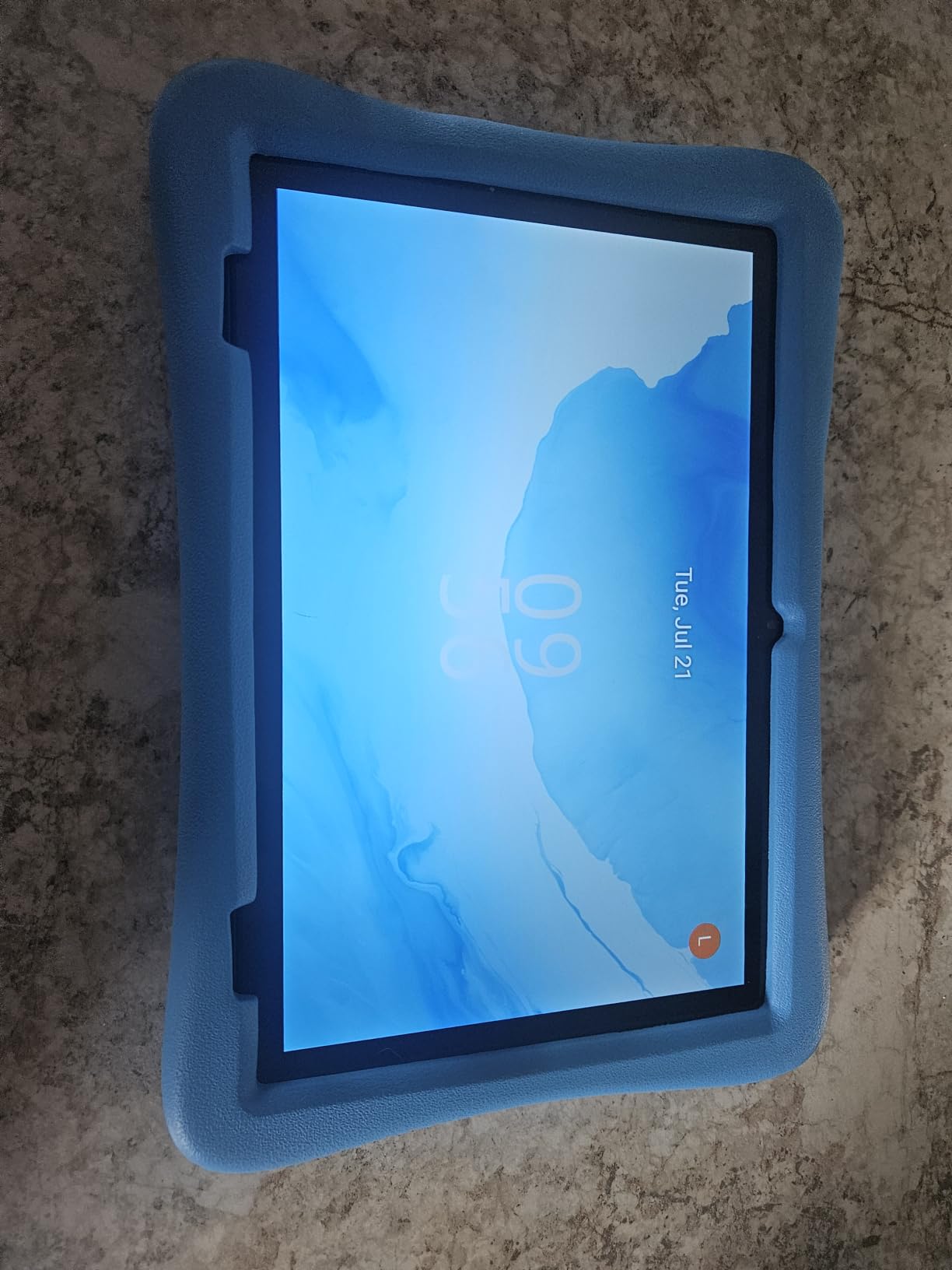
Check what is actually in the box. The title advertises a case included while the components list only the tablet, a USB adaptor, a charge cable and a manual, so confirm with the seller before you rely on the case being there.
Check how the assistant is bounded. It is most useful for a primary school child asking homework questions, and you should pair it with the parental controls rather than leaving it unrestricted.
Where the Plimpton falls short
4 GB of RAM is the constraint to know about. It slows multitasking, and it means this tablet will feel dated sooner than the Android 15 version number suggests.
At 800 grams it is the heaviest body here, which is noticeable for a younger child holding it for a long session. The rotatable EVA bracket helps with viewing angles but not with weight.
12. aiprotablet 10-inch Android 16 Kids Tablet – Best Lightweight Body
aiprotablet 10 inch Kids Tablet, Android 16 Tablet for Kid, Octa-Core CPU, 24GB RAM, 64GB ROM 1TF Card Expandable for Children,Tablets with Case, Parental Control, 6000mAh,WiFi (Blue)
10-inch 1280x800 LCD
Android 16 with 64 GB expandable to 1TB
456 g body
6000mAh with 18W fast charging
Pros
- Lightest body in the roundup at 456 g for small hands
- Kids App Store with content filtering
- 64 GB storage expandable to 1TB
- 6000mAh battery with 18W fast charging
- Face recognition and dual speakers
Cons
- Lowest average rating here at 4.1 with 14% one-star reviews
- Unisoc T606 is an entry-level chip
- One-year warranty is the shortest in the roundup
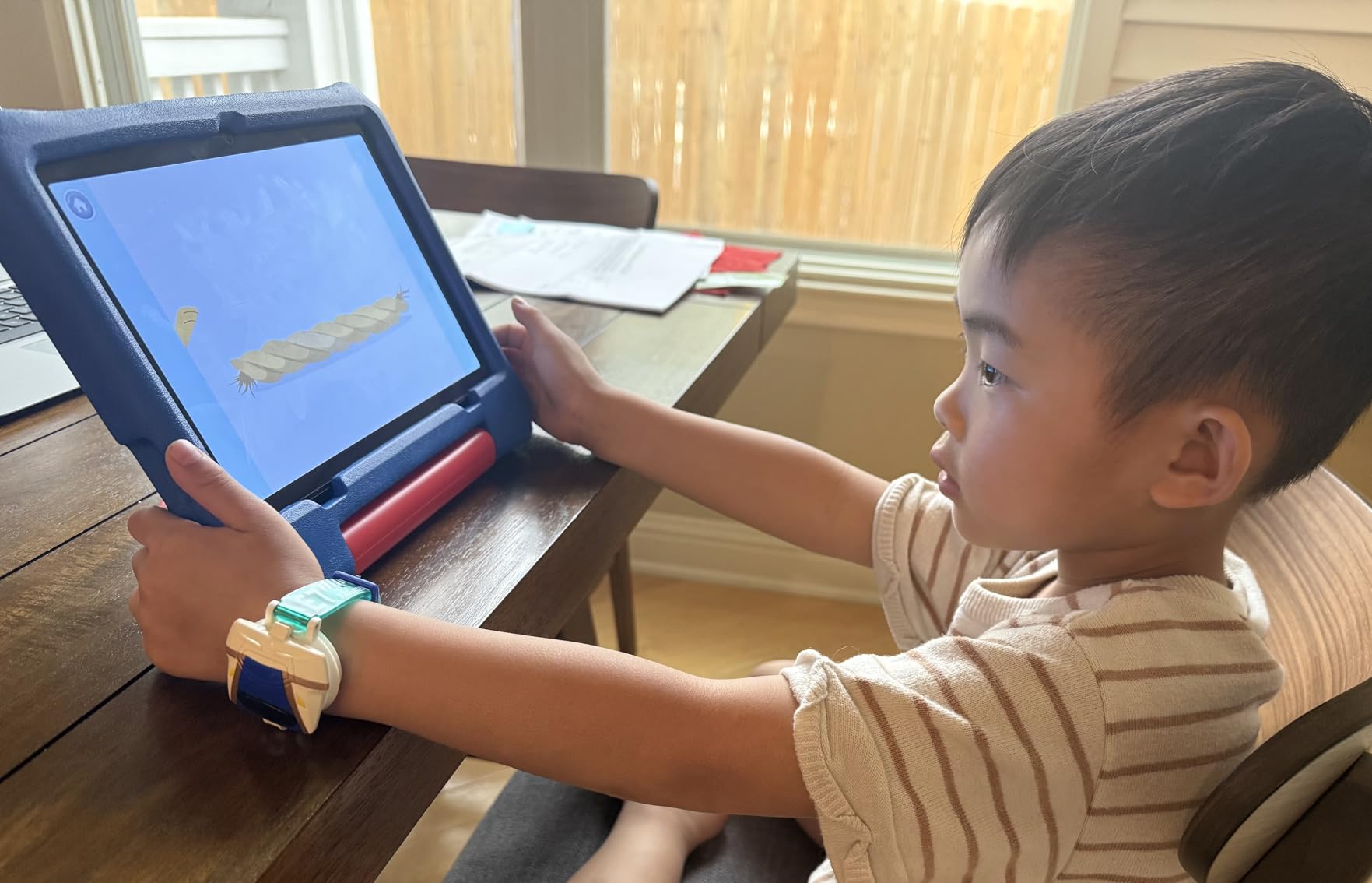
The reason this tablet is on the list is weight. At 456 grams it is the lightest body in the roundup by a wide margin, and that is the detail that decides whether a small child can hold it comfortably for a whole session instead of dropping it after ten minutes.
It runs Android 16, the newest version among the tablets here, with a Unisoc T606 octa-core and GMS certification, so Google Play apps install normally.
A Kids App Store with content filtering sits alongside built-in parental controls that manage screen time, set learning goals and filter by age. Preloaded kid-friendly apps mean it works out of the box.
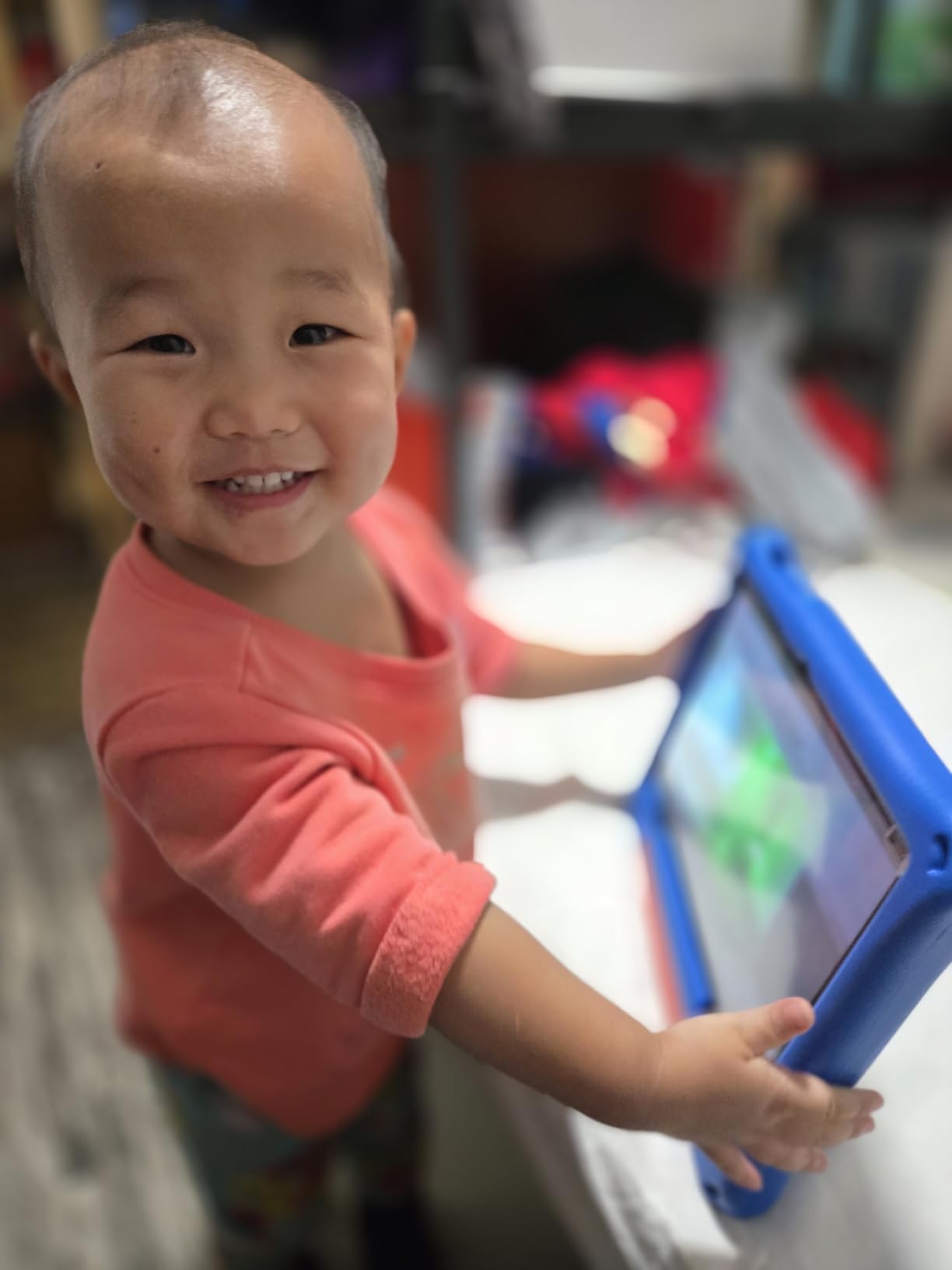
Charging is handled better here than on most rivals. The 6000 mAh cell with 18W PD fast charging means a short top-up covers a session, and face recognition adds a layer parents did not have a decade ago.
The 14% share of one-star reviews is the highest in the roundup, which points to some early-model consistency and support concerns rather than to a design fault. That is why the light body is the headline rather than the software.
Dual speakers, an FM radio and dual-band Wi-Fi round out a specification sheet that is otherwise entirely aimed at children aged 3 and up.
What to check before buying the aiprotablet
Check the warranty, because one year is the shortest cover on this list. The Fire 7 Kids carries a two-year worry-free guarantee and the TABWEE carries four years, and that difference matters over a three-year ownership period.
Check whether the low weight solves a problem you actually have. If your child struggles to hold a 10-inch device, this is the model that fixes it, and nothing else on the list competes.
Where the aiprotablet falls short
It has the lowest average rating in the roundup at 4.1, which is worth weighing against the class-leading lightness.
The Unisoc T606 limits heavier apps, so if gaming matters more than weight, a heavier tablet with a stronger chip serves better.
How to Choose the Best Kids Tablet for Learning in 2026
The mistake most parents make is choosing on hardware and setting parental control afterwards. Flip that order. Decide the age band first, then the control model, then the screen, then the price. Our picks above cover four distinct categories, and the right one depends almost entirely on how old your child is and how much freedom you want them to have.
1. Match the device to the age band, not the price
Toddlers aged 12 months to 3 years need a device they can hold and a screen they cannot break. The LeapFrog Scout fits at 12 ounces with no browser and no app store, and a screen-free pad like the Think Academy is a legitimate choice for a two year old who does not need a display at all.
Preschoolers from 3 to 5 respond best to themed content and audio. The VTech PAW Patrol tablet covers letters, phonics, spelling, typing and math in a package a four year old will actually choose, and the Qiaojoy pad covers bilingual English and Spanish teaching with no screen.
Early elementary children from 6 to 8 need storage, a bigger screen and something that can carry Google Classroom. That is where the Google-certified Android models such as the AOCWEI start to make more sense than a Fire tablet.
Tweens from 9 to 12 want a stylus and a screen that does not feel babyish. The TABWEE covers that with a round-tip pen in the box, a 10.1-inch eye-care display and a four-year warranty.
2. Choose the parental control model that matches your tolerance
There are four control systems in common use and they differ more than most comparisons admit. Amazon Parent Dashboard filters the library by age, sets daily and per-category limits and handles purchase approval. It is the most usable of the four for a non-technical parent, and its weakness is that the Fire environment itself has no Google Play Services.
Apple Screen Time combined with Guided Access is the most powerful but the most fiddly. Parents consistently describe it as confusing to configure and easy for a determined child to work around, and iPadOS lacks multiple user accounts on some configurations, so content can leak between parent and child on a shared device.
Google Family Link covers the certified Android models here and gives you per-app time limits, location controls and approval requests. Samsung Kids does a similar job on Samsung devices. The advantage is that the underlying tablet is a normal Android device, so nothing is taken away and you can add capabilities later.
If you want the strictest possible setup, the LeapFrog models here go furthest: the LeapPad Ultimate browser only reaches websites chosen by learning experts, and the LeapPad Academy lets you pre-approve specific sites. That is a real lockdown, and it is why those devices suit ages 3-8 better than older children.
3. Judge storage by what you will actually use
Storage is where budget bundles quietly fail. The Fire 7 Kids 16 GB variant leaves roughly 3.5 GB usable after system software, which is enough for a handful of apps and nothing more. The AOCWEI at 128 GB and the COLORROOM at 64 GB give you room to install without a second purchase.
Every model here except the two LeapPad toy tablets supports microSD or TF expansion, with ceilings ranging from 1 TB to 2 TB. A card is the cheapest way out of a small internal drive.
4. Check battery against the longest outing you plan
Runtime claims vary enormously and they are manufacturer figures rather than measurements. The Fire 7 Kids is listed at up to 10 hours, the COLORROOM at 8 to 12 hours, the AOCWEI at roughly 8 hours of mixed use, and the LeapPad Academy commonly reports around an hour per charge in reviews.
For road trips and flights, treat anything under six hours as a half-day device and pack a charger. For school days, the difference rarely matters because the tablet is near a socket.
5. Assume the case, not the tablet, takes the drop
Owners of Amazon Fire Kids tablets report the bundled case is what actually absorbs falls. The same is true of the EVA and TPU cases bundled with the COLORROOM, AOCWEI and TABWEE models.
The trade-off is bulk and sound. Parents report cases muffle speakers and are bulky for small hands, so check that a child can still hold the device comfortably with the case on. Also check whether a charger and case are included, since some Android tablets sell them separately and that inflates the real cost.
6. Count the ongoing cost, not just the device
The three year figure matters more than the purchase price, and competitors rarely put it in one place. Amazon Kids+ includes a year with the Fire bundles and renews monthly after that. LeapFrog Academy runs around 40 per year, and the LeapPad Ultimate bundles a large stated value of apps so its first year costs less.
Add on a case and a charger if they are not included, and a stylus if handwriting practice is the goal. The TABWEE and the LeapPad Academy include a pen, while the COLORROOM does not.
7. Know which platforms to avoid
Toy-grade tablets built on abandoned Android versions are the category to skip. They get no security updates, their app catalogs stop growing, and children outgrow the curated content around age 8 or 9 while the hardware remains behind. The two LeapFrog toy pads here are included because they are well made and well rated for their narrow age bands, not as general-purpose tablets.
If you want a cheap tablet with a case rather than an expensive bare device, note that several models here bundle both. The Fire 7 Kids, COLORROOM, AOCWEI, TABWEE and aiprotablet all include protective cases.
8. Set up the first week properly
Before handing over the device, create the child profile and enter an accurate age, then set daily limits and category limits rather than one blanket number. Configure purchase approval so in-app purchases cannot happen without you, block the browser entirely if the child is under six, and set a bedtime cutoff.
Then agree on the rules out loud before the first session. Parents report that the device works far better when the limit is a family rule rather than a technical restriction a child perceives as an obstacle.
For learning beyond the device, our guide to online learning programs for kids covers structured courses, and kids laptops are worth a look once homework becomes typing-heavy. If screen-free STEM is the goal, robotics kits build the same problem-solving skills with more hands-on time, and chess boards for kids do the same for logic.
Frequently Asked Questions
What is the best educational tablet for children?
The Amazon Fire 7 Kids is our top pick for most families. It targets ages 3-7, ships with a kid-proof case and a two-year worry-free guarantee, runs up to 10 hours on a charge, and pairs with the Amazon Parent Dashboard to filter content by age and set daily limits. For a tablet under three years old, a screen-free learning pad is a better fit than any screen device.
What is the best tablet for kids to study on?
For school-aged children, a Google-certified Android model is the strongest study option because Google Classroom and mainstream reading apps install normally. The AOCWEI 10-inch tablet offers 128 GB of storage, a child-lock launcher and around 8 hours of mixed use. For younger children working on letters and handwriting, the LeapFrog LeapPad Academy includes a stylus built for exactly that.
What is the best tablet for helping kids learn to read?
The COLORROOM 10-inch Android 15 tablet pairs a 10.1-inch 1280×800 anti-blue-light screen with Google Kids Space and a 6000mAh battery rated at 8 to 12 hours of reading. A larger, eye-care display is the main factor for sustained reading practice. For early phonics at preschool age, the VTech PAW Patrol tablet covers letters, phonics, spelling and typing in a themed format younger children choose willingly.
What is the best tablet for kids to use at school?
Choose a GMS-certified Android tablet with enough storage for downloaded work. Fire tablets have no Google Play Services, so YouTube Kids and Google Classroom are awkward to reach on them. The TABWEE 10-inch Android 16 model adds a stylus for handwriting, a 10.1-inch eye-care screen and a four-year warranty, which suits a child who will keep the device for years.
Which tablet has the best parental controls that actually work?
The strictest controls come from the LeapFrog models. The LeapPad Ultimate browser only reaches websites chosen by learning experts, and the LeapPad Academy lets you pre-approve specific sites. The Amazon Parent Dashboard is the easiest to configure day to day, while Google Family Link is the most capable on standard Android because it adds per-app limits rather than removing access.
What is the best tablet for kids to use for online classes?
For video calls and live classes, a 10-inch screen with front and rear cameras and dual speakers handles it well. The COLORROOM has a 5MP front and 8MP rear camera with dual stereo speakers and a 6000mAh battery, and Google Kids Space keeps the profile filtered while classes run. A rear stand, included on the LeapPad models, holds the device upright during a call.
Final Verdict for the Best Kids Tablets for Learning
The Amazon Fire 7 Kids wins this roundup. It has the highest review count in the group, the parental controls that are easiest for a parent to actually run day to day, a bundled case and a two-year worry-free guarantee, and enough stated battery for a full outing.
Buy something else when your child needs it. A screen-free pad under three, themed content from three to five, a Google-certified Android tablet from six to eight, and a stylus-equipped 10-inch model from nine to twelve each solve a problem the Fire does not.
Whichever you pick, set the profile and limits before the first session rather than after the first complaint.