

The best coding robots for kids are the ones that turn programming into something you can see, hear and correct. A child builds a sequence of moves, presses go, watches a robot trace a path across the floor, and immediately knows the instruction was wrong. That feedback loop is the whole point, and it is why these kits sit in playrooms and classrooms across the country.
We spent weeks putting twelve of them through the same routine: unbox, set up, run the sample program, then push past the sample. Our criteria were ease of setup for a child, how deep the coding goes before it plateaus, whether the learning material is useful without an adult standing over the child, and how the units survived being dropped on a hard floor. Every product below is written by one of our writers, not pulled from a spec sheet alone.
The short answer for most families: screen-free robots for under-6s, block-based app robots for ages 6 to 10, and block-to-Python robots for ages 9 and up. If you want a broader look at the toys that build problem-solving skills without a full robot chassis, our guide to the best coding toys for kids covers the non-robotic side too.
Table of Contents
Top 3 Coding Robots for Kids Right Now

Sphero Mini Coding Robot
- JavaScript and draw mode in Sphero Edu
- Drive modes plus 3 arcade games
- Only 1 hour of play per charge

Teach Tech Mech-5
- Snap-on coding wheel
- No screen or device needed
- Throws lifts kicks and draws

ELEGOO UNO R3 Robot Car
- Arduino IDE and Visuino support
- FPV camera and line tracking
- 2000 mAh rechargeable battery
Two of our top three are deliberately different from the third. The Sphero Mini and the Teach Tech Mech-5 ask almost nothing of a child beyond pressing buttons in the right order, while the ELEGOO UNO R3 expects a soldering-free wiring session and some patience with an Arduino sketch. Pick based on how much adult involvement you actually want.
The Best Coding Robots for Kids in 2026 at a Glance
| Product | Specifications | Action |
|---|---|---|
| Sphero Mini Coding Robot |
|
Check Latest Price |
| Teach Tech Mech-5 |
|
Check Latest Price |
| ELEGOO UNO R3 Robot Car Kit |
|
Check Latest Price |
 Makeblock mBot Makeblock mBot |
|
Check Latest Price |
 Code and Go Robot Mouse Code and Go Robot Mouse |
|
Check Latest Price |
 Wonder Workshop Dash Robot Wonder Workshop Dash Robot |
|
Check Latest Price |
 Learning Resources Botley 2.0 Learning Resources Botley 2.0 |
|
Check Latest Price |
 Coding Critters Go Pets Fox Coding Critters Go Pets Fox |
|
Check Latest Price |
 Makeblock Codey Rocky Makeblock Codey Rocky |
|
Check Latest Price |
 Thames and Kosmos Coding Chameleon Thames and Kosmos Coding Chameleon |
|
Check Latest Price |
 Apitor Robot J Building Kit Apitor Robot J Building Kit |
|
Check Latest Price |
 Sphero Indi Learning Kit Sphero Indi Learning Kit |
|
Check Latest Price |
1. Sphero Mini Coding Robot Ball: Best Overall Coding Robot
Sphero Mini Green Coding Robot Ball
1.57 inch spherical robot
0.11 kg
JavaScript in Sphero Edu
1 hour play per charge
Pros
- Draw mode drag-and-drop blocks and real JavaScript in one free app
- Durable shell and easy to carry anywhere
- Includes 3 cones and 6 bowling pins for immediate obstacle play
- Doubles as a remote-controlled toy before any coding happens
Cons
- Joystick and slingshot drive modes take real practice
- Gyro heading drifts after bumps
- Only 1 hour of play per charge
The Mini is the one I recommend most often. It is a sealed ball roughly the size of a ping-pong ball, which means it survives being rolled under a sofa and bounced off a skirting board. My own six-year-old had it driving under furniture within a minute of opening the box, which is exactly the low-friction entry point most families need.
Coding lives in the free Sphero Edu app, and it is deeper than the toy price suggests. A child can start in Draw mode by tracing a path on the screen, move to drag-and-drop blocks with loops and variables, and finish writing real JavaScript. Reviewers consistently point out that collision booleans, variable control and LED programming are all available in the same app, which means one robot covers a wide skill range.
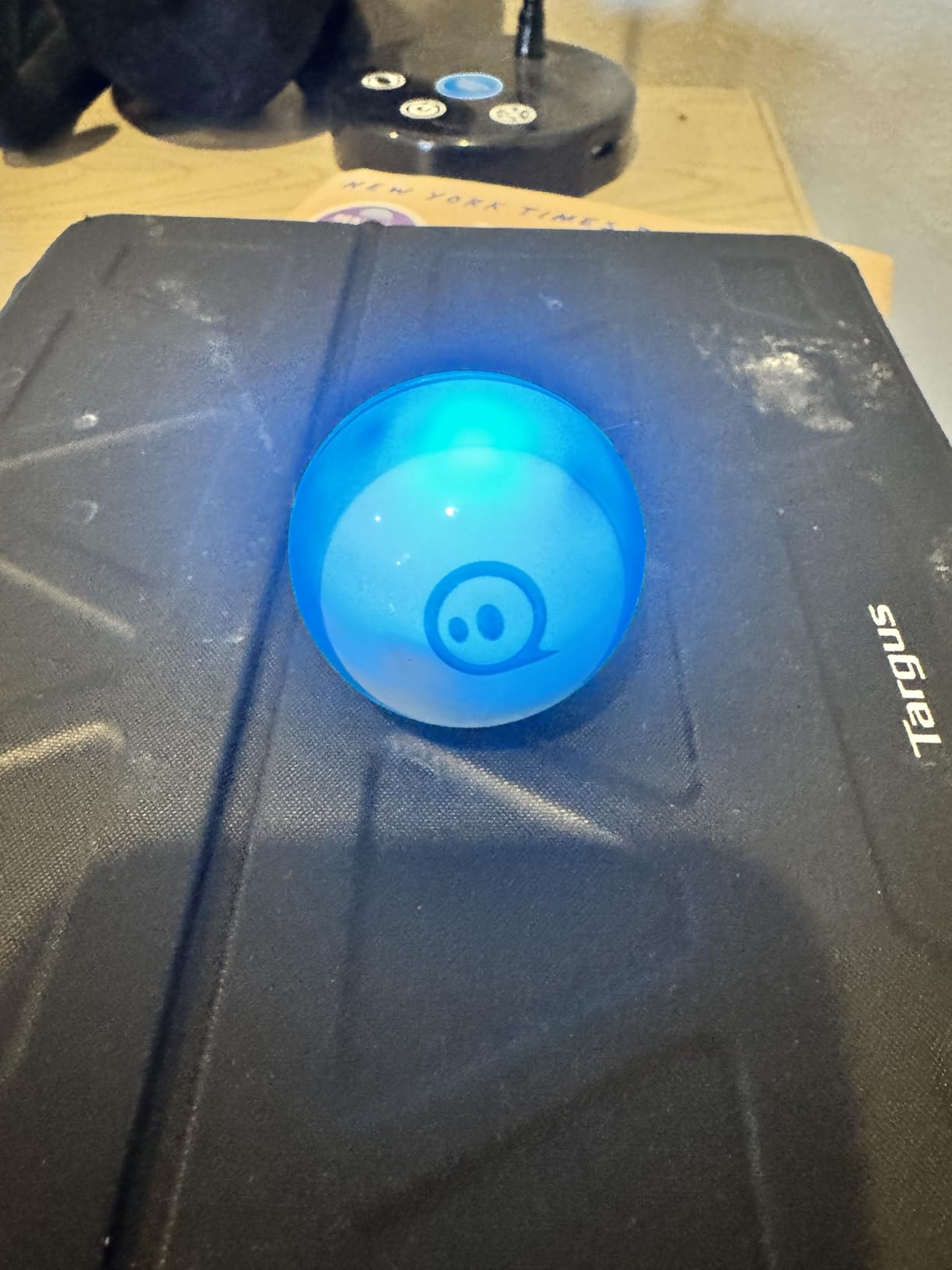
The weak point is physical, not educational. The gyroscope drifts after a hard knock, so a program that was accurate ten minutes ago may drift a few degrees, and the Sphero Play drive controls are noticeably twitchy for small hands. Reviewers also mention that hardwood floors perform noticeably better than carpet.
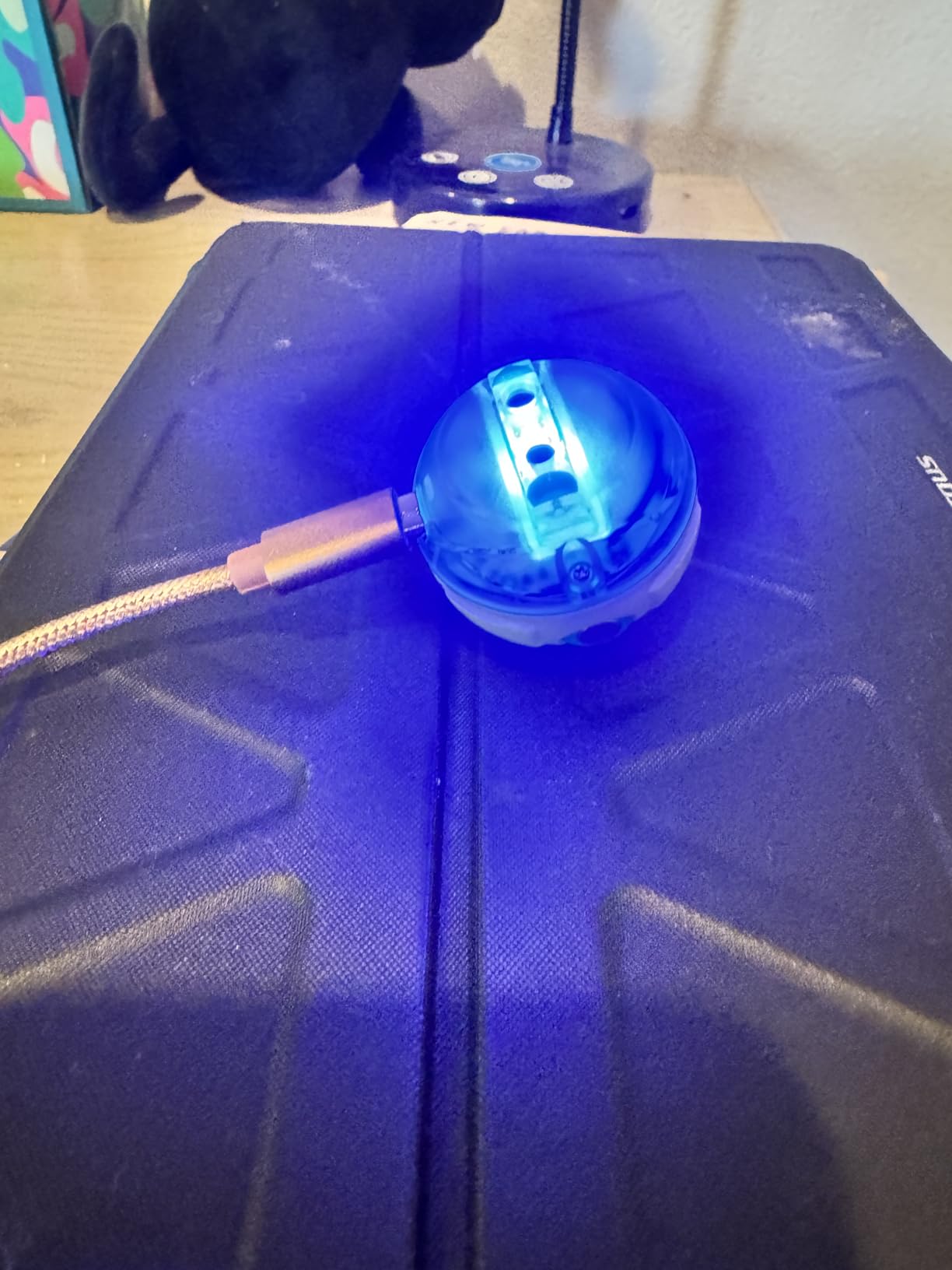
One hour of play per charge is the number most families notice first. It is enough for a focused session rather than an afternoon, so we would plan on charging it overnight and treating the robot as a weekday or weekend activity rather than an all-day companion.
When the Sphero Mini is the right choice
Choose the Mini when your child is around 8 or older, has a tablet or phone already, and wants to keep the same robot for a couple of years. Because JavaScript is available in the same app, the ceiling is high enough that it does not become a dead gift at 11.
It also suits parents who want one robot for two children of different ages. A younger child can use Draw mode while an older sibling programs the same ball in blocks or text.
When the Sphero Mini is the wrong choice
Skip it under age 7 if you are avoiding screens, since every real programming task happens inside an app. Reviewers also flag that a first-time user can struggle to find and set up the right app on their own, so expect to help with installation.
If your child has a rug-only play area or a rough-and-tumble house, a sturdier build like the ELEGOO UNO R3 will tolerate more abuse than a spherical shell.
2. Teach Tech Mech-5 STEM Coding Robot: Best Value Pick
TEACH TECH Mech-5 STEM Coding Robot Building Kit for Kids Ages 10+
Snap Circuits mechanical build
Mechanical coding wheel
Throws lifts kicks and draws
Ages 10 and up
Pros
- Genuine mechanical engineering build alongside coding
- Completely screen-free with no device needed
- Mission-based tasks make mechanical principles approachable
- Detailed step-by-step assembly instructions
Cons
- Expect several hours of assembly before it works
- Not a pre-assembled toy so younger kids need adult help
- Programming uses a mechanical wheel rather than software
The Mech-5 is the odd one out in this group and that is exactly why it is worth considering. Instead of an app, the child snaps button tiles onto a physical coding wheel, and the robot executes that sequence. Nothing is downloaded, nothing is charged, and there is no account to create.
Once built, the robot throws a ball, lifts an object, kicks and draws a line. My testers found the drawing function far more compelling than expected, because it produces a visible artefact that has to be reasoned about rather than a movement that happens and disappears.

The build is the commitment. Reviewers consistently describe it as a multi-hour project, and it is sold as an entry-level mechanical engineering kit for ages 10 and up. We would budget an afternoon, ideally with an adult and a second pair of hands for the fiddly stages.
The other limitation is depth. Because the coding interface is a mechanical wheel, there is no way to introduce variables, loops or conditionals. That is a real ceiling for a child who will be coding in two years.

When the Mech-5 is the right choice
It suits a 10-year-old who loves taking things apart more than they love apps, and any family that wants zero screen time on a coding toy. The Snap Circuits sub-brand also means the parts feel substantial rather than flimsy.
It is a good bridge to electronics. A child who finishes this kit tends to ask better questions about circuits, which is a genuinely useful foundation for later hardware work.
When the Mech-5 is the wrong choice
It is a poor gift for a restless child who wants to play in five minutes, because the robot is a box of parts until the build is finished. Anyone under 10 will need a patient adult for most of assembly.
If the goal is text-based coding or a path toward Python, choose an app-based robot instead. This one teaches order and cause and effect, not programming languages.
3. ELEGOO UNO R3 Smart Robot Car Kit: Best for Arduino Coding
ELEGOO UNO R3 Smart Robot Car Kit V4 with Camera, Compatible with Arduino
UNO R3 board plus ESP32 camera
2000 mAh battery
1.23 kg
Line tracking and ultrasonic sensors
Pros
- Best documentation in the category
- with labeled bags and spare fasteners
- Works from the box by remote or app
- then accepts Arduino code
- Live FPV camera plus line tracking and obstacle avoidance
Cons
- Obstacle avoidance fails on shallow-angle approaches
- Camera sits at about 45 degrees so front obstacles are hard to see
- V4 exposes only one expansion connector
Of everything we tested, this is the kit that most reliably pulled a child away from a screen. It is a real robot car with a live camera feed, and the difference between watching a video of a robot and steering one through your own hallway at night is bigger than it sounds.
The hardware is Arduino-compatible through the UNO R3 controller, with a separate ESP32-WROVER module handling the Wi-Fi camera. Program it in Arduino IDE or Visuino, and you can edit the example code for custom routes once line tracking and obstacle avoidance stop being interesting.
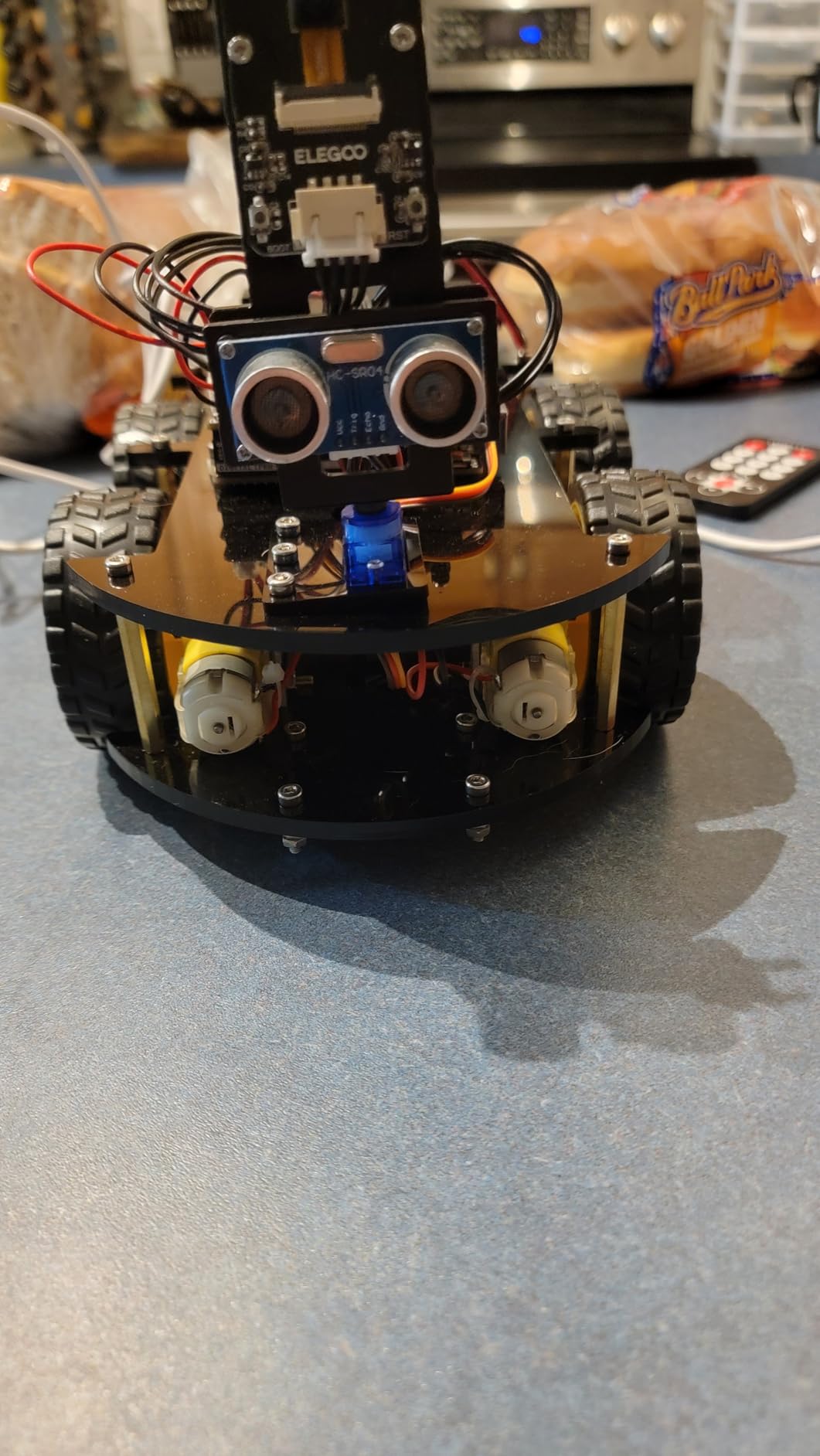
Documentation is the standout feature. Reviewers, including parents who do not read English natively, single out the illustrated tutorials and keyed XH2.54 connectors, which stop wires going in backwards. Parts arrive in labelled bags with spare fasteners and a small tool set.
The criticisms are specific and fair. Obstacle avoidance sometimes fails when an object approaches at a shallow angle and needs a wave of the hand to reset, and the bundled app has no motor speed ramping, so the car starts and stops abruptly.

When the ELEGOO UNO R3 is the right choice
This is our pick for a 10-year-old or older who wants real electronics. The weight, the wiring and the code editor make it feel like engineering rather than play, and the expansion potential is the highest here.
It suits a homeschooler or a family already comfortable with a text editor. A child who can read Arduino sketches will get a year or more out of it, and reviewers report the documentation holds up even for adults new to hardware.
When the ELEGOO UNO R3 is the wrong choice
Do not start here. The V4 kit exposes only one expansion connector, fewer ports than the earlier version, and no USB-C cable is included for reprogramming the ESP32 module, so a younger child will hit walls immediately.
It is also the heaviest option we tested at 1.23 kg, which is fine on a desk and awkward on carpet. If your child wants something they can pick up and drive within ten minutes, the Makeblock mBot is a better fit.
4. Makeblock mBot: Best for Classrooms and First Robotics Projects
Makeblock mBot STEM Coding Toys Robotics for Kids Ages 8-12
Metal and plastic frame
0.93 kg
15 minute build
Scratch blocks through mBlock to Arduino
Pros
- Metal frame feels more durable than typical plastic STEM kits
- Builds in roughly 15 minutes so coding starts the same day
- Clear progression from Scratch blocks to Arduino
- Wide add-on ecosystem of modules
- parts and LEGO pieces
Cons
- Remote controller and robot need batteries that are not included
- Some setup steps need an adult alongside
- Can feel advanced for a child new to block coding
The mBot is the most complete starter platform in this group and the one we recommend for a classroom. It assembles in about 15 minutes with clearly illustrated instructions, which matters enormously when six children need to get to the coding stage before the lesson ends.
mBlock gives a clean path from Scratch-style blocks up to Arduino. Reviewers describe that progression as the main reason to buy it, because a child who masters block coding here can move to text languages without switching toys.
The robot also works immediately as an RC car with line-follow and obstacle-avoidance modes, so a child who is not ready to program still has something to do on day one.
When the mBot is the right choice
Choose it for ages 8 to 12, particularly if the child has already shown interest in Scratch or has a sibling who programs. The compatibility with 100-plus Makeblock modules, 500-plus parts and standard LEGO pieces means the set does not dead-end after a month.
For teachers it is the safest pick in this list, with coding cards and lessons included alongside three free apps.
When the mBot is the wrong choice
Batteries are the most common complaint in reviews and they are not included for either the robot or the remote controller. Budget for AA cells and a coin cell before the first session or the disappointment will land hard.
A child who has never used block coding can find mBlock dense at first. Parents on forums asking for non-screen-based options for young children should look elsewhere in this list.
5. Learning Resources Code and Go Robot Mouse: Best for Ages 4 and 5
Learning Resources Code & Go Robot Mouse Activity Set
Screen-free button programming
3.9 pounds
20 inch by 20 inch maze board
30 double-sided coding cards
Pros
- Screen-free introduction to sequencing that works from age 4
- Thick sturdy pieces that survive classroom use
- Progressive difficulty lets skills build gradually
- Engaging enough for pre-readers
- Adults enjoy it and can invent extra mazes
Cons
- Needs 3 AAA batteries that are not included
- Long sequences drift because turns are not precise
- Must remember to clear the program before entering a new one
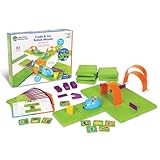
This is the set we hand to a child who cannot read yet. The mouse has a row of directional and action buttons on its back, and the matching coding cards show what each press does, so sequencing is understood without any text on the table.
The maze system is the strongest argument for it. Sixteen grid boards build a 20 inch by 20 inch play surface, with 22 walls and 3 tunnels to construct obstacles. A pre-reader can spend an hour on a single maze and never feel rushed.
Reviewers consistently praise the progressive difficulty in the 30 double-sided coding cards and 10 activity cards, which create a natural scaffold from simple four-step routes to longer sequences with repeats.

Where it falls short is accuracy. The mouse does not always execute turns precisely, so a long sequence drifts off course and the child has to debug by shortening it. It also stops running the program the moment it reaches the cheese, which ends the run early.
Two more practical notes. The set needs 3 AAA batteries that are not included, and kids must remember to press the clear button before entering a new sequence or the program keeps adding to the old one.

When the Robot Mouse is the right choice
It is made for ages 4 and up, which makes it the earliest genuine coding experience in this roundup. Parents looking for screen-free coding for under-6s will find few better options, and the physical pieces are thick enough for a classroom STEM centre.
Reviewers also report strong manufacturer support when classroom mice were damaged, which matters more than most buyers expect.
When the Robot Mouse is the wrong choice
There is no text-based programming here at all, so a child ready for loops and conditionals will run out of road quickly. Treat it as a foundation rather than a long-term platform.
Small hands sometimes struggle to connect the gripping tiles. If your child is impatient with fiddly pieces, the Sphero Indi is a gentler introduction.
6. Wonder Workshop Dash Robot: Best Premium Pick for Ages 6 to 11
Wonder Workshop Dash Robot – Coding Robots for Kids 6 and Older
Ready out of the box
No assembly needed
5 hours of active play
Five apps for iOS Android and Fire OS
Pros
- Works immediately with no assembly or setup fuss
- Used in more than 40000 schools so teacher support is well established
- Five apps spanning Blockly Wonder and Path
- Building brick connectors extend it into LEGO-style builds
Cons
- Costs more than most screen-free robots in this category
- Needs a phone tablet or Fire device for full value
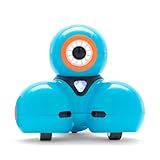
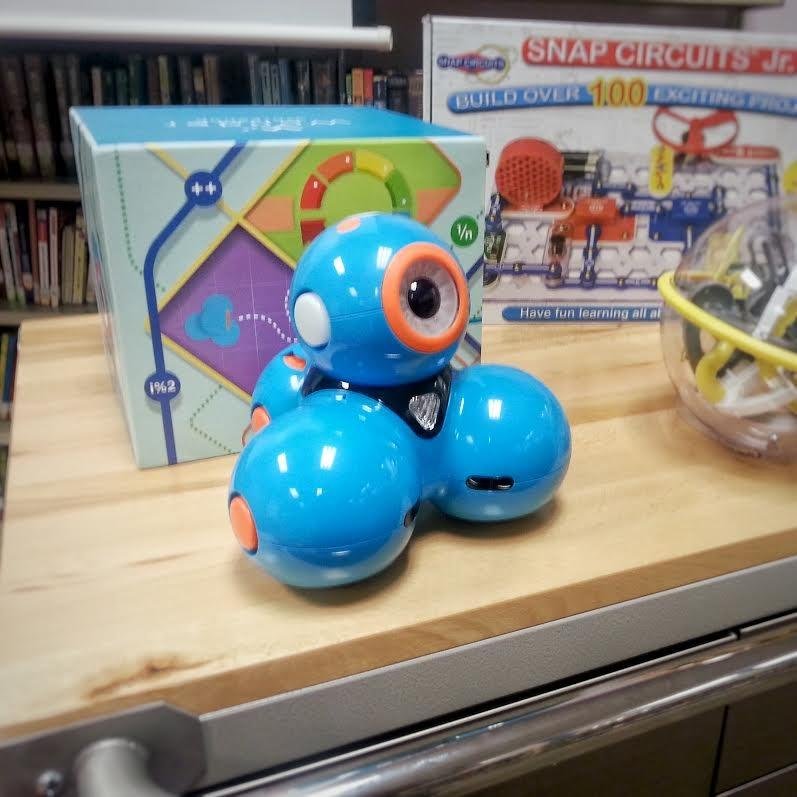
Dash arrives ready to program. There is no assembly, no wiring and no firmware step, which removes the single biggest source of friction we found in every other kit here. It sings, dances, navigates obstacles and responds to voice commands the moment you unbox it.
The learning content is organised around sequencing, loops, algorithms and variables, delivered through five apps covering the Blockly, Wonder and Path environments across iOS, Android and Fire OS. For a 6-year-old that is plenty of runway.
Up to 5 hours of active play on the rechargeable battery is the number that matters for a family with two children sharing one robot. Reviewers highlight the 40000-plus schools using it as the reason support and lesson material are so easy to find.
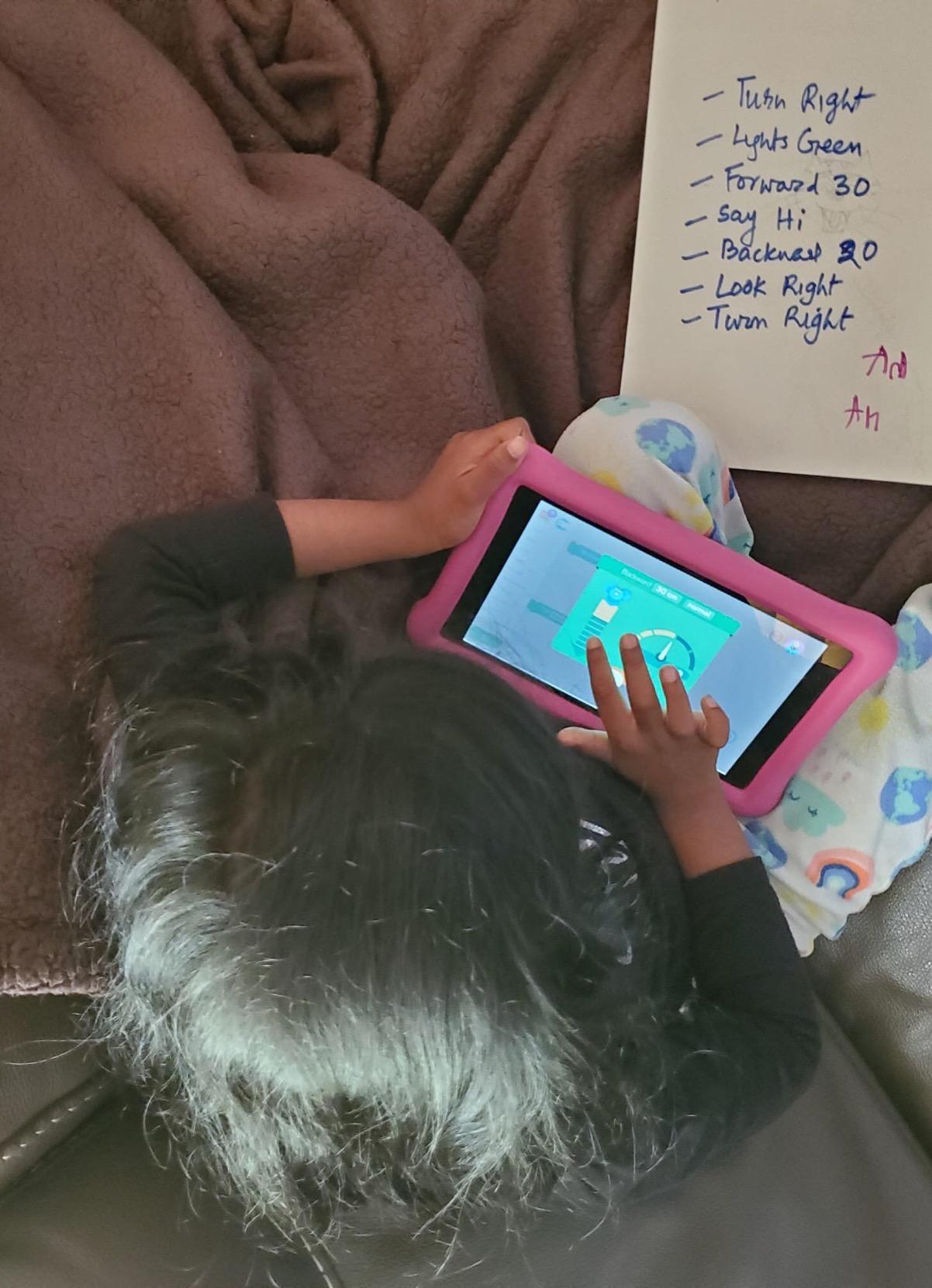
Two trade-offs. You need a phone, tablet or Fire device to get the full value, and the unit has no camera, so projects involving vision or object recognition are out of reach.
It is also the most expensive option in this roundup by a wide margin. Parents on forums worried about paying a lot for something a child might outgrow should weigh that carefully.
When the Dash Robot is the right choice
It suits ages 6 to 11 in a home with a tablet, or a classroom where a teacher wants lesson plans that already exist. The building brick connectors let a child add LEGO-style attachments when they want more than the base robot.
Because it teaches variables and algorithms directly, it can carry a motivated child further than a button-programming screen-free robot.
When the Dash Robot is the wrong choice
It is a poor fit for a family avoiding screens under age 6, and a poor fit for a child who wants to build or wire something. Dash is designed for programming, not assembly.
If a child loses interest in the apps within a few months, check that the age gap is not too large. A 4-year-old will find the interfaces busy.
7. Learning Resources Botley 2.0: Best Screen-Free Coding Robot
Learning Resources Botley 2.0 The Coding Robot Activity Set
78 piece set
454 g
Remote programmer and 40 coding cards
45 and 90 degree turns
Pros
- No tablet or app needed
- No reading required so pre-readers can play alone
- 78 pieces create many maze and obstacle designs
- Scales from cause and effect to if and then logic
Cons
- Turns only at exactly 90 or 45 degrees
- Children must remember to clear the program
- Requires 5 AAA batteries that are not included
Botley 2.0 is the strongest screen-free option we tested. The remote programmer holds up to 40 coding cards, and the child walks the robot through a route, presses a button, and watches it execute. No device, no account, no reading required.
The 78-piece set includes the robot, the remote, 6 double-sided boards and stackable obstacles, which gives a lot of design space for a single afternoon. Object-sensing reactions plus light, sound and music responses and 16 secret code combinations keep it interesting past the first week.
It scales properly too. A four-year-old can press one card and watch a cause-and-effect move, while an older child builds multi-step routines with if and then logic.

The 45 and 90 degree turn limitation is the most common complaint in reviews and it is a real one. Because there is no intermediate angle, a route that looks right on the card can land the robot against a wall, which is frustrating before it becomes interesting.
Adults often hit the learning curve before children do, so give yourself a practice run. It needs 5 AAA batteries, not included, and it is designed for indoor use.

When Botley 2.0 is the right choice
Choose it when screen time is the main worry, the child is between 5 and 8, and you want something that survives months of hard use. Teachers single it out because no device is required and there is nothing to sign in to.
It also works well for siblings of different ages, since the same set supports both simple cause-and-effect and longer routines.
When Botley 2.0 is the wrong choice
It has no software at all, so there is no route to Scratch, Python or any text-based coding. Children who are already writing programs will outgrow it quickly.
Watch for the forgotten clear button. Because the remote keeps building on the previous program, a child who forgets to clear it can spend twenty minutes confused by a route that was never programmed.
8. Coding Critters Go Pets Scrambles the Fox: Best Budget Pick
Learning Resources Coding Critters Go Pets Scrambles the Fox Coding Robot
Screen-free line following
6.3 by 7.3 by 2.5 inches
16 coding tiles
12-page storybook included
Pros
- Screen-free line-following play that is intuitive for young children
- Storybook adds narrative context that coding toys usually lack
- Compact and inexpensive way to introduce early coding
- Tiles and path segments let kids build their own mazes
Cons
- Line-following is a fixed path rather than programmable sequences
- Included material is largely paper so it is less durable
- Limited to short sessions and narrow skill coverage
The Fox is the cheapest genuine coding robot here and the best choice for a stocking filler or a classroom bin. It is a motorized pet that follows a black line, controlled by 16 coding tiles and path segments the child lays out.
The storybook is what separates it from generic line-following toys. Twelve full-colour pages give the coding a narrative frame, which reviewers say works well for preschool and early elementary children who find bare mazes dull.
At 4.2 stars it sits in the lower half of this roundup’s ratings, with a smaller review base. That reflects narrower scope rather than poor quality.

Be clear about what it teaches. Following a line is a fixed path, not a programmable sequence, so there is no real debugging and no conditional logic. It introduces the idea that an ordered path produces a result, and that is genuinely useful at this age.
The included material is largely paper, which makes it less durable than a plastic robotics kit. A sibling who chews foam will destroy it faster than a robot.

When the Coding Critters Fox is the right choice
It suits ages 4 to 7, preschool settings and any family that wants an inexpensive first coding experience without a screen. The story format gives teachers a ready-made activity structure.
If you are building a set of rotating STEM stations, several of these cost less per unit than most plastic maze kits.
When the Coding Critters Fox is the wrong choice
It is not a programming toy in the sense most parents mean. There is no sequence to write, correct and rerun, so it will not satisfy a child who wants to debug a mistake.
Sessions are short by design. For a longer, more substantial screen-free experience, the Robot Mouse or Botley 2.0 give far more play value per child.
9. Makeblock Codey Rocky: Best Scratch to Python Robot
Makeblock Codey Rocky Interactive Coding Robot for Kids 6-12
Panda robot with dot-matrix display
Drive, Draw-and-Run and Code modes
Scratch blocks to Python
Pros
- Expressive dot display and sound effects make it feel like a pet
- Works as a remote-controlled toy out of the box
- Scratch-to-Python progression gives a real learning path
Cons
- Software setup is confusing with several apps and unclear roles
- Code upload to the robot is not obvious
- Programs must start with an event trigger or nothing runs
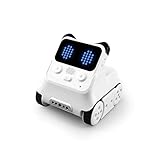
Codey Rocky is the only product here with a documented route from Scratch blocks all the way to Python, and for a child aged 6 to 12 that is a genuinely strong curriculum path. The panda form with a wide dot-matrix display also makes it the most emotionally appealing robot here.
Three modes cover the range: Drive for manual control, Draw-and-Run for recording a path, and Code for block programming. It also works as a remote-controlled toy before any coding happens, which buys you time to set up the software.
It accepts LEGO Technic pins for custom builds, so a child who finishes the coding exercises can turn the robot into something else.

The software is the weak point, and reviewers are unusually blunt about it. Multiple apps with unclear roles, downloads that are hard to locate, and a code upload process that is not obvious all generate complaints. The fix that comes up again and again in reviews is to start with the Codey Basic tutorial on the mBlock app.
One behaviour catches everyone out. If a program does not begin with an event trigger, nothing executes at all, and a child with no explanation will assume the robot is broken.

When Codey Rocky is the right choice
It suits a 9 or 10-year-old who is ready to move past Scratch and start looking at text. The compact body, fast charging and long battery life make it easier to keep on a desk than the ELEGOO car.
Choose it when a parent can sit with the child for the first two sessions. Ten minutes of setup guidance converts most of the complaints.
When Codey Rocky is the wrong choice
Do not buy it for a child who needs something that works out of the box. The setup friction is the most reported negative experience.
Several buyers also feel the cost is high given what is included. If your budget is fixed and the child is younger than 8, the mBot covers similar ground more simply.
10. Thames and Kosmos My Robotic Pet Coding Chameleon: Best for Hands-On Building
Thames & Kosmos My Robotic Pet: Coding Chameleon STEM Building & Experiment Kit | Color-Sensing Coding Robot for Boys & Girls Ages 8+, Screen-Free Educational Fun, Robotic Reptile with 3 Play Modes
15 inch robotic chameleon
133 pieces
Color, infrared sensors and RGB LEDs
48-page manual
Pros
- Genuinely engaging build that children describe as hours of fun
- Fully unplugged coding with color and infrared sensors
- Three distinct play modes including camouflage matching
- Manual teaches engineering design thinking alongside assembly
- Replacement parts reportedly supplied when asked
Cons
- Assembly often takes 3 to 4 hours and is hard at the stated age 8
- Thin plastic with tight tolerances can need deburring
- Walks poorly on carpet and can tip on hard floors
The Coding Chameleon is the most ambitious build in this roundup: 133 pieces forming a 15 inch model with articulated joints, an automatic tongue that fires and retracts, and a 48-page manual. Reviewers describe the build itself as hours of fun.
Coding happens with physical action cards driving a color sensor, an infrared sensor and RGB LEDs. There are three modes: Coding, Wild camouflage where the model changes color to match its surroundings, and Pet touch response.
It is also completely unplugged. No device, no software and no account.

This is the most polarised product we tested, and the reason is mechanical. Reviews from two degreed engineers describe thin plastic, tight tolerances, burrs that need filing and gears that jam. Some units arrive assembled incorrectly and will not function.
Plan for 3 to 4 hours of assembly, expect to deburr parts, and set up an adult and a hobby knife before you start. It walks poorly on carpet and can tip over on hard floors.

When the Coding Chameleon is the right choice
It suits a child aged 9 or older who treats construction as the main event, and a family that wants real sensor-driven coding with no screen at all. The color-matching camouflage mode is a genuinely clever idea.
If you enjoy building together, the quality concerns shrink considerably. Adults report Thames and Kosmos supplying replacement parts when asked.
When the Coding Chameleon is the wrong choice
It is a poor choice for an 8-year-old working alone, which is what the box implies. A parent should treat it as a weekend project, not a gift that works on the afternoon it arrives.
At 4.1 stars it is the lowest-rated pick here, and the complaints are about hardware rather than learning value. If reliability matters more than the build, choose the ELEGOO kit or the mBot.
11. Apitor Robot J 480-Piece Building Kit: Best for Building and Coding Together
Apitor STEM Coding Robot Toy 6-in-1 Building Kit for Boys 8-12 480 Blocks
480 blocks with one control module
2 motors and multicolor LEDs
Snap-together, no tools
Icon-based coding app
Pros
- Highest rating in this roundup at 4.7 stars
- Blocks hold together as well as name-brand bricks
- Kids as young as seven build and program independently
- App doubles as remote control and coding environment
- Six distinct models keep the set fresh
Cons
- Coding app can be finicky at times
- Some instructions only available through the app
- Requires 3 AA batteries that are not included
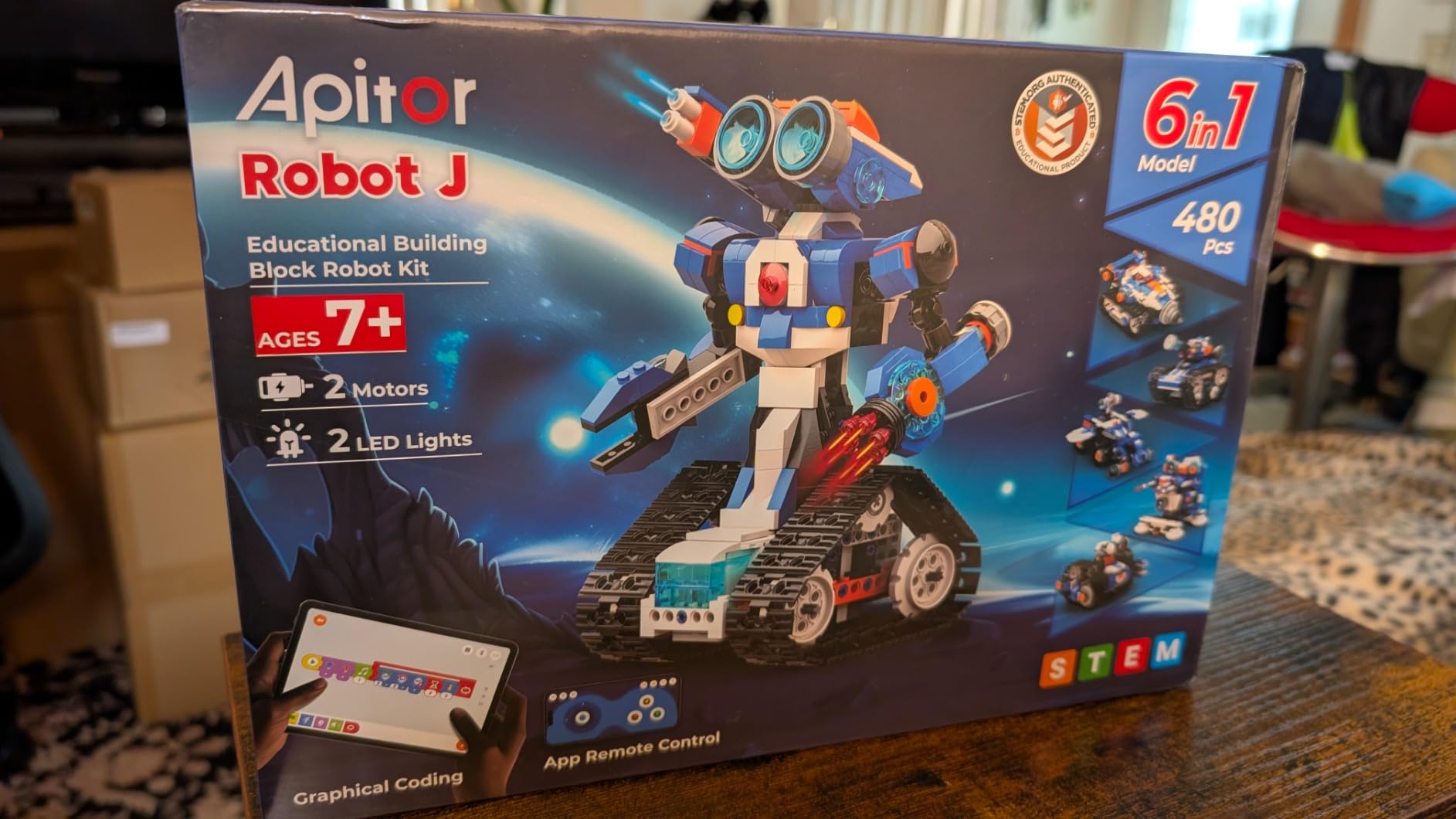
The Robot J is the surprise of the roundup. At 4.7 stars it has the highest rating we recorded, and the reason is build quality. Multiple reviewers state the 480 blocks hold together as well as name-brand bricks, which is not a low bar for a kit at this level.
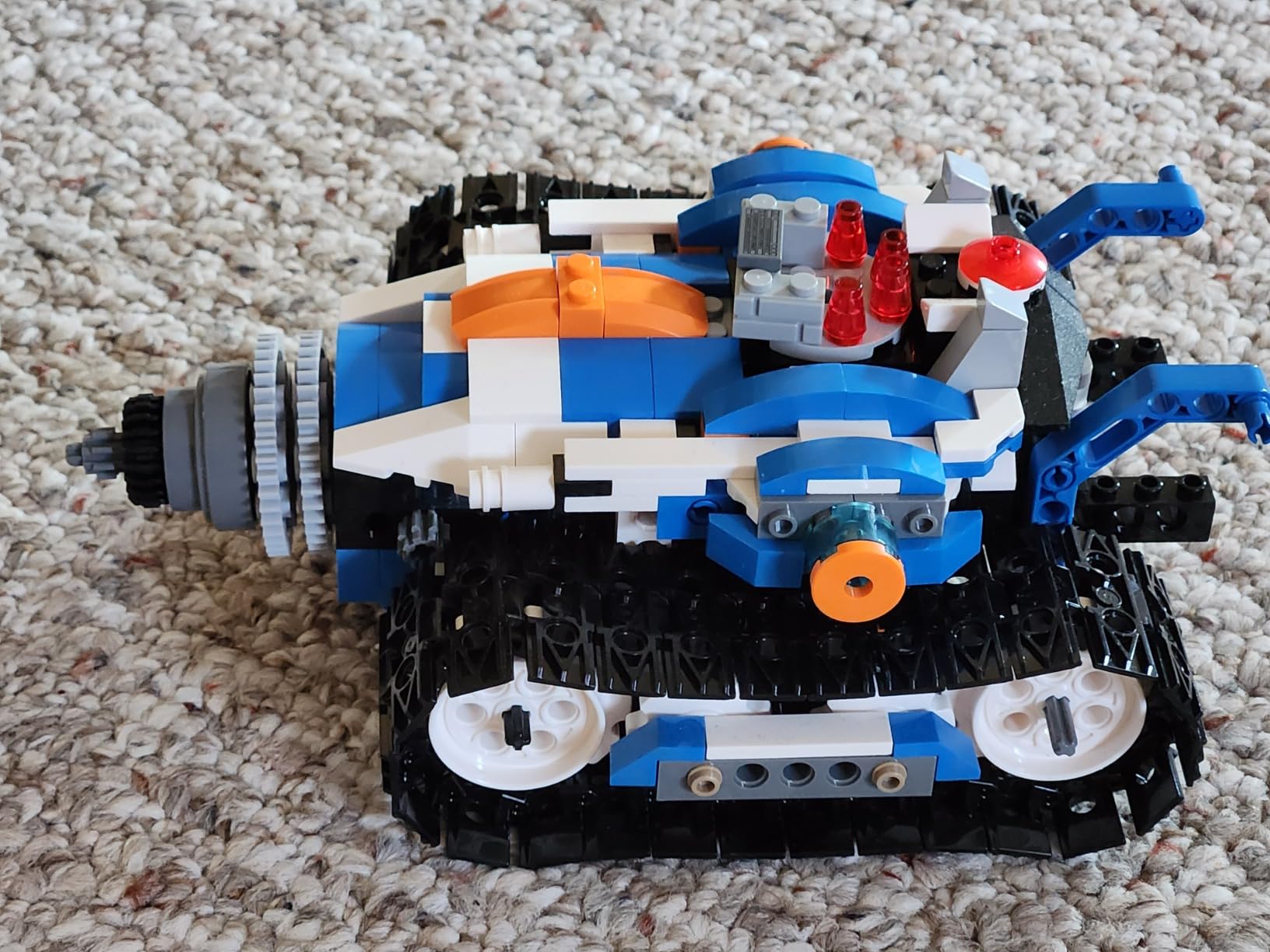
One control module houses two high-speed motors and multicolor LEDs, and children can build 6 different robot models with no screws or tools. The finished robot moves in all directions and performs 360-degree stunts.
Reviewers specifically mention children as young as seven assembling models and programming them unaided, which is unusual for a kit with this many pieces.
When the Robot J is the right choice
It suits ages 8 to 12, especially a child who builds first and programs second. The icon-based app teaches loops, variables and problem solving without text, and offers four control modes including dual-motor, single-motor, gyro and path.
For a child who already owns LEGO-style bricks, this adds a functional motor unit to a familiar construction language.
When the Robot J is the wrong choice
App finickiness is the recurring complaint, and some instructions only exist inside the app rather than in print, which is awkward offline. It needs 3 AA batteries, not included.
One reviewer judged it too advanced for the advertised age range. If your child is under 7 and does not enjoy building, this will frustrate rather than teach.
12. Sphero Indi At-Home Learning Kit: Best for Pre-Readers
Sphero Indi At-Home Learning Kit Screenless Coding Robot
On-board color sensor
Color cards for screenless coding
Sphero Edu Jr app optional
Lithium ion battery included
Pros
- Color cards take coding off the screen into a tangible format
- A 4-year-old can use it independently while a 7-year-old is still challenged
- Works with no screen at all and also with the Sphero Edu Jr app
- Stickers let kids personalize the robot
Cons
- Color cards bend easily and then sit too flat for the robot to cross
- One reviewer reported a color failing to register entirely
- Some buyers upgrade to the more durable silicone card set
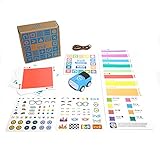
Indi is the gentlest coding robot here. Its on-board color sensor reads physical color cards laid out as a path, so a child who cannot read can drive it across the floor without an adult translating anything.
Children build their own mazes and decorate the robot with the included stickers, which adds the creative element that most programming kits leave out. Teachers who already use the classroom version report that it holds up well.
It works screenless out of the box, and the free Sphero Edu Jr app adds optional drag-and-drop coding later. The rechargeable lithium-ion battery removes the recurring battery cost that trips up several cheaper options.

Card durability is the headline problem. Reviewers report the cards bend easily and then stop sitting flat, so the robot misses a color it previously read fine. Several buyers upgrade to a sturdier silicone card set, and one reviewer had a color fail to register at all.
With 135 reviews the evidence base is thinner than for the other picks here, so treat the long-term wear picture as something to check after a few months of use.
When Sphero Indi is the right choice
It suits ages 4 and up and any child who is not ready for an app. A 4-year-old can use it independently, and reviewers report it still challenging a 7-year-old, which is a wide useful range.
It is also a good middle option between a pure toy and a tablet toy: screenless by default, upgradeable when the child is ready.
When Sphero Indi is the wrong choice
It will not carry a child into text-based programming. Anyone asking about Python or Scratch support on this robot will be disappointed, so plan to move up later.
Card wear is the thing to watch. Inspect the cards after the first month of play, because a bent card reads as a broken robot to a frustrated child.
How to Choose a Coding Robot for Your Child
Match the robot to the age, not the marketing
Ages 4 to 5 need a sequence they can build without reading: buttons, cards or colored tiles. Ages 6 to 8 can handle a drag-and-drop interface and usually enjoy a visible result more than a long lesson. Ages 9 and up want to see real code, real sensors or a real build.
Our own rule is that a child should be bored by the sample program within a week. If the default example still excites them at week three, buy the more advanced model.
Decide between screen-free and app-based
Screen-free robots such as the Robot Mouse, Botley 2.0 and the Coding Chameleon work with physical cards and buttons, which keeps under-6s away from a display while still teaching sequencing. Parents searching specifically for non-screen-based options for young children keep landing on this format for good reason.
App-based robots such as the Dash, mBot and ELEGOO UNO R3 go much further, because a tablet is where loops, variables and sensors become accessible. For a child under 6, choose screen-free. For a child over 7, the app is an advantage rather than a cost.
Ask how long they will use it
This is the most common purchase worry and the one least often answered. Screen-free button toys tend to hold attention for six to twelve months. Block-based app robots typically last a year or two. Robots with a documented path to Python or Arduino can hold a motivated child for considerably longer.
Buying something with an upgrade path matters more than buying something impressive. The mBot and the ELEGOO kit both accept add-on modules; a fixed remote-programmed robot does not. If your child prefers a sporty robot that also builds fine motor skills, our picks for the best ping pong robots cover a very different kind of long-term play.
Check the vendor support, not just the hardware
Parents on forums describe the same disappointment repeatedly: a robot works fine, then the app stops updating or the company moves on. Before buying, look at how many apps the product needs, whether free lessons exist, and whether the manufacturer is still publishing software.
Choose products with several independent app options where possible, and avoid buying a robot whose only interface is a single subscription app.
Budget for the extras nobody mentions
Five of the twelve products here need batteries that are not included, and three of them need a phone or tablet to function properly. Add a small budget for cells, spare props and a charging setup, because that is where most frustration appears in the first week.
Also decide in advance how much adult help you can give. The Mech-5 and the Coding Chameleon need hours of shared building. The Dash and the Indi need almost none.
For the wider picture on extending learning beyond a single robot, including projects that work without any robot at all, see our picks for the best coding toys for kids. If your child is ready for sky-watching and stargazing projects alongside STEM, our guide to the best telescopes for kids covers a different kind of long-term hobby.
Frequently Asked Questions
What is a good coding robot for children?
A good coding robot lets a child build a sequence of instructions, run it, and see the result immediately. For ages 4 to 5 that means screen-free button or card programming such as the Learning Resources Robot Mouse. For ages 6 to 8 an app-based block-coding robot like the Wonder Workshop Dash works well. For ages 9 and up, look for a documented path to Python or Arduino, as offered by the Makeblock mBot or Codey Rocky.
What is the best coding robot kit for a 10-year-old?
At 10, most children can handle both building and text-based coding. The Makeblock mBot is the strongest general choice, with a clear progression from Scratch blocks to Arduino and a metal frame that survives handling. The ELEGOO UNO R3 Smart Robot Car Kit suits a child who wants real electronics, wiring and Arduino sketches, while the Makeblock Codey Rocky is the clearest route from Scratch to Python.
What are the top 10 robots for kids?
Our ten highest-rated picks are the Sphero Mini, Teach Tech Mech-5, ELEGOO UNO R3 Smart Robot Car Kit, Makeblock mBot, Learning Resources Robot Mouse, Wonder Workshop Dash, Learning Resources Botley 2.0, Coding Critters Go Pets Fox, Makeblock Codey Rocky and Apitor Robot J 480-Piece Kit. The Sphero Indi At-Home Learning Kit and the Thames and Kosmos Coding Chameleon complete the roundup for pre-readers and hands-on builders.
What is the best starter robotics kit for kids?
For a first robot, choose something that works within minutes of opening the box so the child gets to programming rather than assembly. The Wonder Workshop Dash is ready to code immediately and teaches sequencing, loops, algorithms and variables. For ages 8 to 12 the Makeblock mBot builds in about 15 minutes and keeps a long upgrade path through add-on modules and Arduino.
Are screen-free coding robots better than app-based ones?
Neither is better overall, they suit different ages. Screen-free robots such as the Botley 2.0 and the Code and Go Robot Mouse teach sequencing without a display, which suits children under 6 and any family limiting screen time. App-based robots such as the Dash and the mBot can teach loops, variables and sensors because a tablet makes those concepts visual, so they suit children aged 6 and up.
How long does a coding robot keep a child interested?
It depends on how deep the programming goes. Button-programmed screen-free robots tend to hold attention for six to twelve months. Block-based app robots usually last a year or two. Robots with a documented progression to Python or Arduino can keep a motivated child engaged considerably longer, which is why the upgrade path matters more than the number of accessories in the box.
Final Verdict: Which Coding Robot Should You Buy in 2026?
The Sphero Mini is our pick for the best coding robots for kids overall, because one free app takes a child from drawing a path to writing JavaScript on the same robot, and the shell survives being rolled under furniture. It wins on rating, on the size of its review base and on how little adult help it needs after setup.
For a four-year-old who is not reading yet, choose the Learning Resources Robot Mouse. For a family avoiding screens entirely under six, choose Botley 2.0. For a 10-year-old who wants real electronics, choose the ELEGOO UNO R3, and for a motivated 8 to 12-year-old who wants a long runway into Arduino, choose the Makeblock mBot.
Whichever you pick, give it a term rather than a weekend. Set one challenge, let it fail, and let the child work out why. That habit, not the robot, is what teaches programming.